Featured Sections Management
Featured Sections allow you to organize and display products on your website's homepage in customizable sections. These sections help showcase different product categories, collections, or themes, making it easy for customers to discover products.
Why Use Featured Sections?
- Organize products by category, theme, or collection
- Highlight specific products on the homepage
- Improve navigation with section-based browsing
- Increase engagement with curated product displays
- Customize layout with different display styles
Featured Sections Dashboard
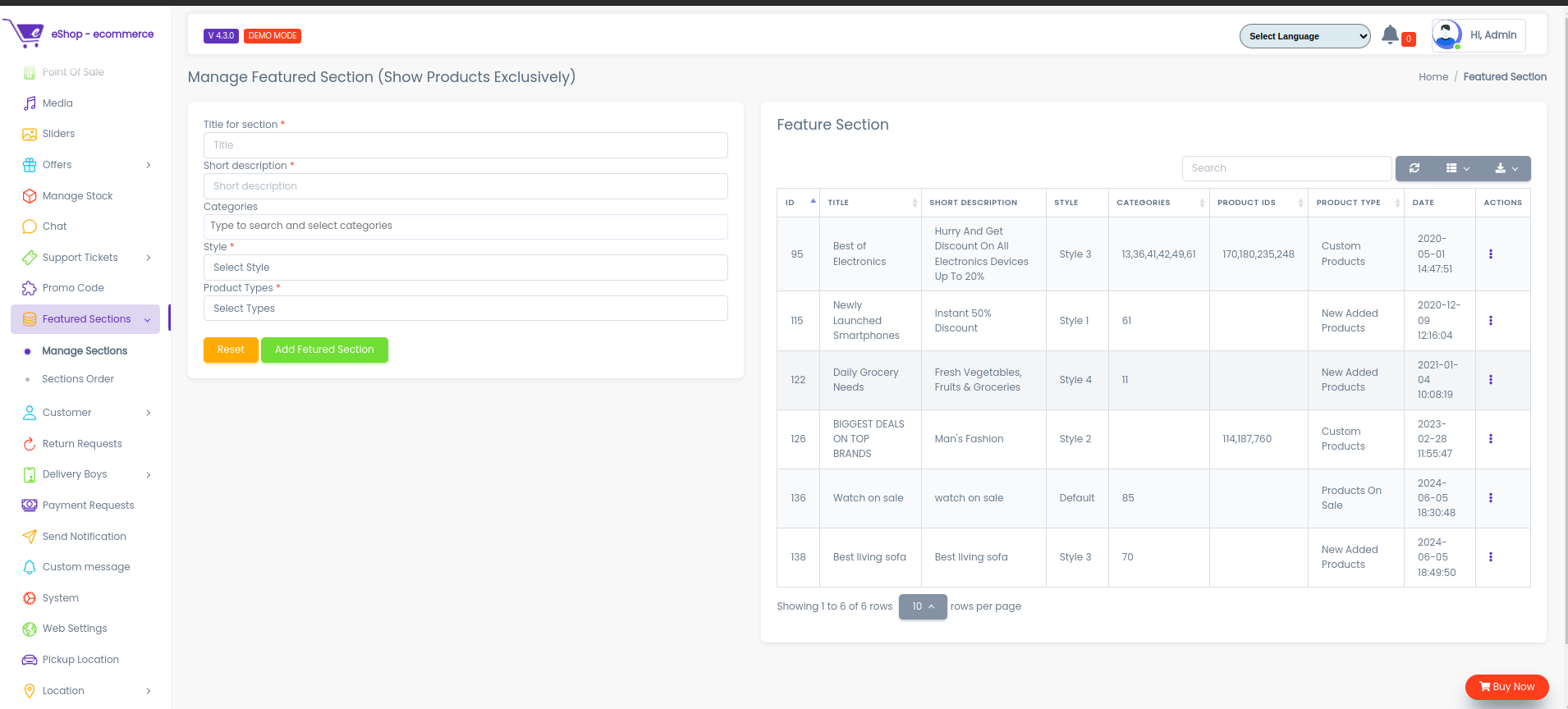
The featured sections dashboard displays all configured product sections for your homepage.
Table Information:
- Title: Name of the section (e.g., "Best Sellers", "New Arrivals")
- Description: Short description of the section
- Style: Display layout style for the section
- Products: Number of products in the section
- Status: Active or Inactive
- Actions: Quick action buttons
Adding a New Featured Section
Step 1: Click "Add Section"
Click the "Add Featured Section" button to create a new product section.
Step 2: Fill Section Form
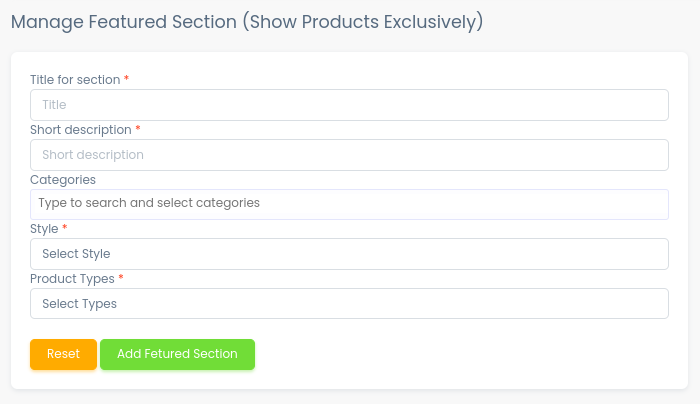
A form will appear with the following fields:
1. Title for Section
- Enter a descriptive title for the section
- Examples:
- "Best Sellers"
- "New Arrivals"
- "Featured Products"
- "Summer Collection"
- "Electronics Deals"
- This title will be displayed on the homepage
2. Short Description
- Enter a brief description of the section
- Examples:
- "Check out our most popular products"
- "Discover the latest additions to our store"
- "Handpicked items just for you"
- Helps customers understand the section's purpose
3. Select Style
- Choose the display layout for the section
- Available styles may include:
- Grid layout (products in rows and columns)
- Carousel/Slider (scrollable product list)
- List view (vertical product list)
- Featured grid (larger product cards)
- Style affects how products appear on the homepage
4. Select Products
- Choose which products to display in this section
- How to select:
- Search for products by name
- Select multiple products from the list
- Arrange products in desired order
- Tips:
- Select 4-12 products per section for optimal display
- Choose products relevant to the section theme
- Update products regularly to keep content fresh
5. Status
- Set section to Active (visible on homepage) or Inactive (hidden)