Area Management
Area Management allows you to configure specific areas or neighborhoods within cities and zipcodes where you provide delivery services. Areas provide the most granular level of delivery control, allowing you to set precise delivery charges and minimum order amounts for specific neighborhoods.
Area Dashboard
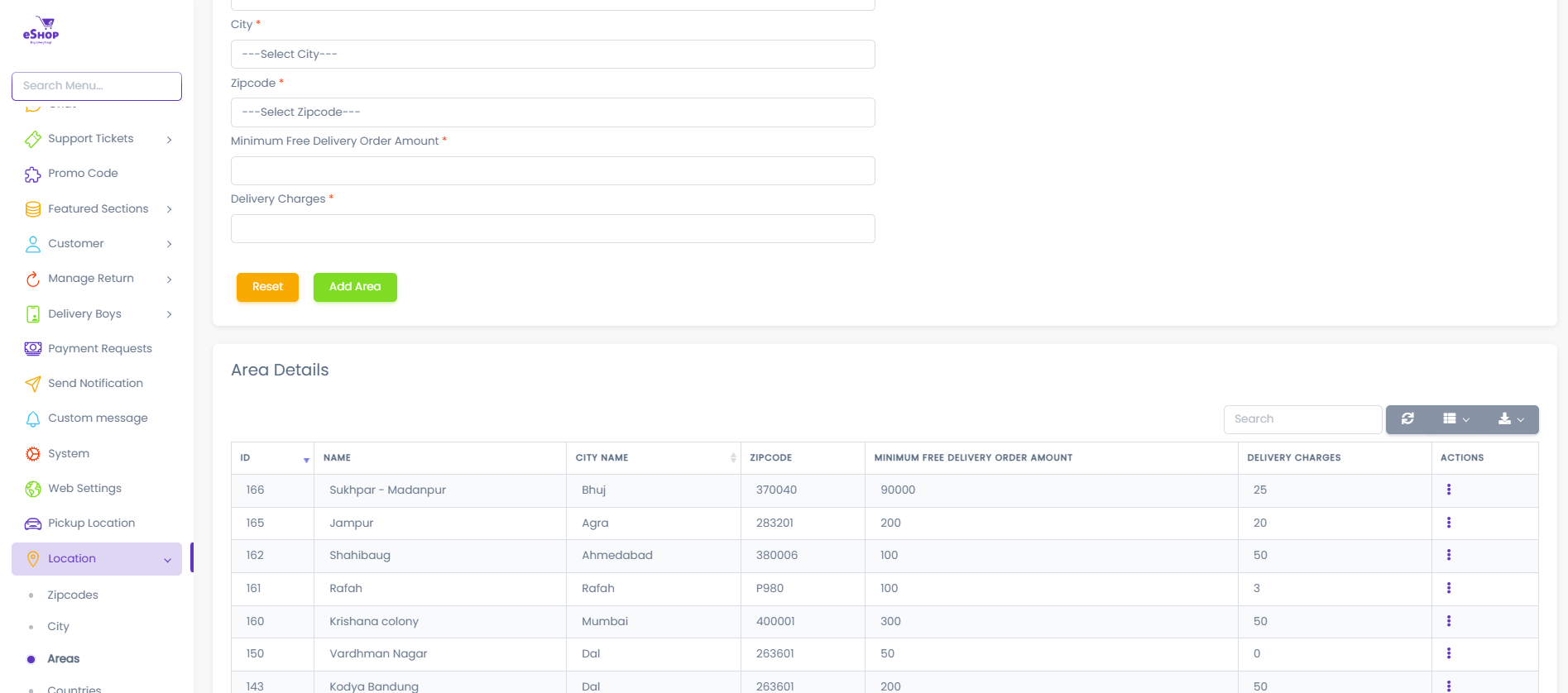
The area dashboard displays all configured areas with their delivery settings.
Table Columns:
- ID: Unique area identifier
- NAME: Area name (e.g., Sukhpur - Madanpur, Jaripur, Shahdhaug, Ratah)
- CITY NAME: Associated city (e.g., Bhuj, Agra, Ahmadabad, Ratah)
- ZIPCODE: Associated postal code (e.g., 370240, 282121, 380016, 91880)
- MINIMUM FREE DELIVERY ORDER AMOUNT: Order value required for free delivery
- DELIVERY CHARGES: Shipping cost for orders below the minimum
- ACTIONS: Three-dot menu for edit/delete options
Adding a New Area
Step 1: Open Add Area Form
Click the "Add Area" button to open the add area form.
The "Manage Area" form displays with five required fields.
Step 2: Fill Area Form
1. Area Name *
- Enter the name of the area or neighborhood
- Required field
- Examples: "Sukhpur - Madanpur", "Jaripur", "Downtown", "Westside"
- Use specific neighborhood or locality names
- Include landmarks if helpful (e.g., "Near Central Mall")
- Use names customers will recognize
- Keep names clear and concise
2. City *
- Select the city this area belongs to
- Required field
- Choose from the dropdown list of configured cities
- Example: Select "Bhuj", "Agra", "Ahmadabad"
You must add cities first before adding areas. Every area must be linked to a city. If you haven't added any cities yet, go to City Management first.
3. Zipcode *
- Select the zipcode this area belongs to
- Required field
- Choose from the dropdown list of configured zipcodes
- Example: Select "370240", "282121", "380016"
You must add zipcodes first before adding areas. Every area must be linked to a zipcode. If you haven't added any zipcodes yet, go to Zipcode Management first.
4. Minimum Free Delivery Order Amount *
- Set the minimum order value for free delivery
- Required field
- Example: If set to 10000, orders above $10000 get free delivery
- Enter 0 if you don't offer free delivery for this area
Order $15000, Minimum $10000 → Free delivery
Order $5000, Minimum $10000 → Delivery charge applied
Minimum set to 0 → Delivery charge always applied
5. Delivery Charges *
- Enter the delivery/shipping cost for this area
- Required field
- Example: 25, 20, 50, 3 (representing $25, $20, $50, $3)
- This charge applies to orders below the minimum free delivery amount
Area-level delivery charges override both zipcode and city-level charges. Use this for the most precise neighborhood-based pricing.
Step 3: Save Area
- Click "Add Area" (green button) to save the new area
- Click "Reset" (yellow button) to clear the form
- The new area will appear in the area list below
Add areas for neighborhoods with unique delivery requirements (gated communities, remote localities, high-rise complexes, etc.).
Editing an Area
Step 1: Open Edit Area Form
- Locate the area in the area list
- Click the three-dot menu (⋮) in the ACTIONS column
- Select "Edit" from the dropdown
- The "Edit Area" modal opens with current settings
The "Edit Area" form displays with the same five fields, pre-filled with current values.
Step 2: Update Area Details
Area Name
- Update the area name if needed
- Example: Change from "Jaripur" to "Jaripur East"
City
- Change the associated city if needed
- Select from the dropdown list
Zipcode
- Change the associated zipcode if needed
- Select from the dropdown list
Minimum Free Delivery Order Amount
- Change the threshold for free delivery
- Example: Change from 10000 to 15000
- Set to 0 to disable free delivery
Adjusting minimum amounts per area allows you to optimize delivery economics for specific neighborhoods.
Delivery Charges
- Update the shipping cost
- Example: Change from 25 to 30
- This applies when order is below minimum free delivery amount
Changes to delivery charges affect new orders immediately. Existing orders keep their original delivery charges.
Step 3: Save Changes
- Click "Update Area" (green button) to save changes
- Click "Reset" (yellow button) to revert to original values
- Changes take effect immediately in the area list
Deleting an Area
How to Delete
- Find the area you want to remove
- Click the three-dot menu (⋮) in the ACTIONS column
- Select "Delete" from the dropdown
- Confirm deletion in the popup
- Area is permanently removed
Deleting an area may affect:
- Customers in that area won't see it as a delivery option
- They may fall back to zipcode or city-level delivery settings
- Existing orders from that area remain unaffected