City Management
City Management allows you to configure cities where you provide delivery services. For each city, you can set delivery charges and minimum order amounts for free delivery.
- Define delivery areas - Specify which cities you serve
- Set delivery charges - Configure shipping costs per city
- Free delivery threshold - Set minimum order amount for free shipping
- Control shipping costs - Different rates for different locations
City Dashboard
The city dashboard displays all configured cities with their delivery settings.
Table Columns:
- ID: Unique city identifier
- NAME: City name (e.g., Sharjah, Abu Dhabi)
- MINIMUM FREE DELIVERY ORDER AMOUNT: Order value required for free delivery
- DELIVERY CHARGES: Shipping cost for orders below the minimum
Adding a New City
Step 1: Open Add City Form
Click the "Add City" button on the right side of the dashboard to open the add city form.
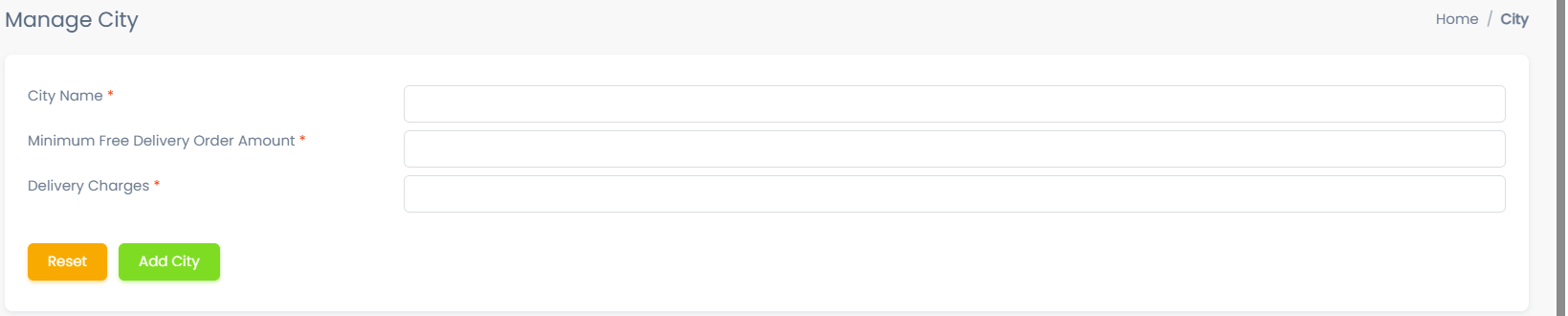
The "Manage City" form displays with three required fields.
Step 2: Fill City Form
1. City Name *
- Enter the name of the city
- Required field
- Examples: "Dubai", "Sharjah", "Abu Dhabi", "New York"
- Use official city names with proper spelling
- Include proper capitalization (e.g., "Abu Dhabi" not "abu dhabi")
- Avoid abbreviations unless commonly used
2. Minimum Free Delivery Order Amount *
- Set the minimum order value for free delivery
- Required field
- Example: If set to 50, orders above $50 get free delivery
- Enter 0 if you don't offer free delivery for this city
Order $60, Minimum $50 → Free delivery
Order $40, Minimum $50 → Delivery charge applied
Minimum set to 0 → Delivery charge always applied
3. Delivery Charges *
- Enter the delivery/shipping cost for this city
- Required field
- Example: 5, 10, 15 (representing $5, $10, $15)
- This charge applies to orders below the minimum free delivery amount
Delivery charges should cover your actual shipping costs while remaining competitive. Research local delivery rates before setting prices.
Step 3: Save City
- Click "Add City" (green button) to save the new city
- Click "Reset" (yellow button) to clear the form
- The new city will appear in the city list below
Add your main cities first, then expand to additional areas as your business grows.
Editing a City
Step 1: Open Edit City Form
- Locate the city in the city list
- Click the Edit button next to the city
- The "Edit City" modal opens with current settings
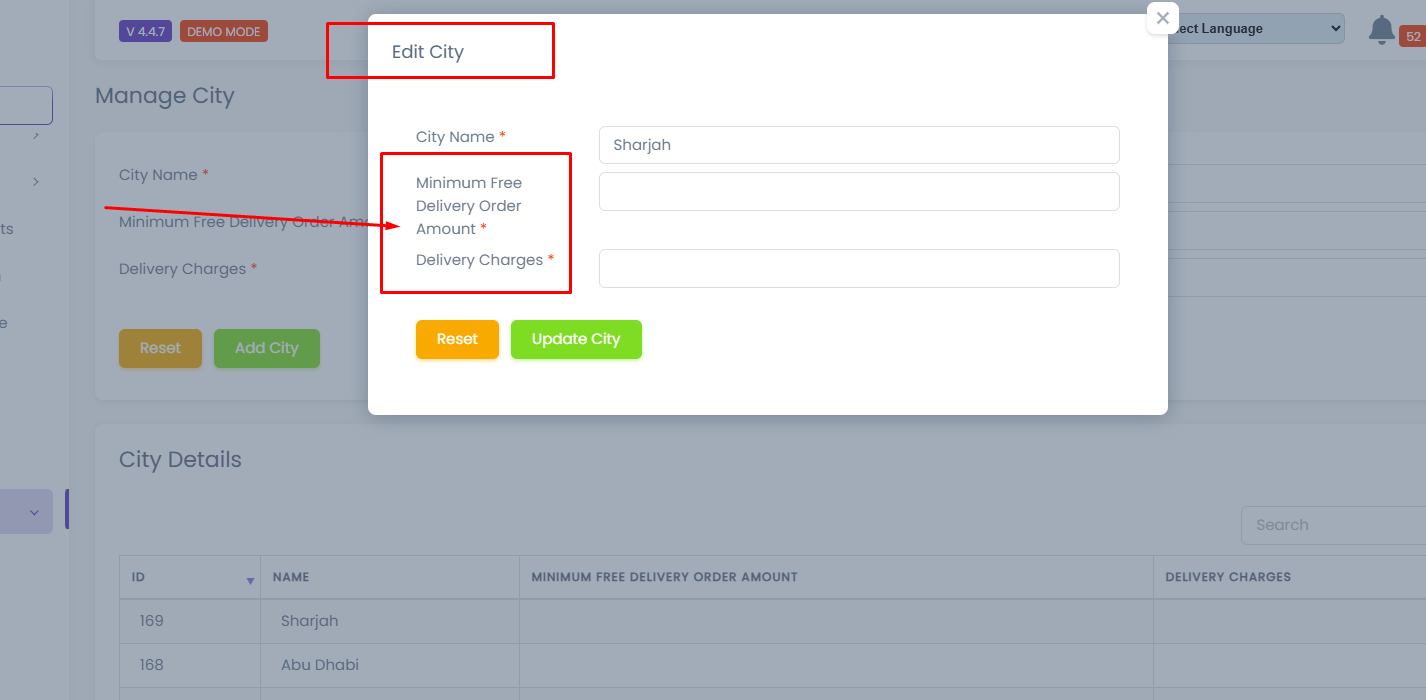
The "Edit City" form displays with the same three fields, pre-filled with current values.
Step 2: Update City Details
City Name
- Update the city name if needed
- Example: Change from "Sharjah" to "Sharjah City"
Minimum Free Delivery Order Amount
- Change the threshold for free delivery
- Example: Change from 50 to 75
- Set to 0 to disable free delivery
Increasing the minimum encourages larger orders but may reduce conversions. Test different thresholds to find the optimal balance.
Delivery Charges
- Update the shipping cost
- Example: Change from 5 to 7
- This applies when order is below minimum free delivery amount
Changes to delivery charges affect new orders immediately. Existing orders keep their original delivery charges.
Step 3: Save Changes
- Click "Update City" (green button) to save changes
- Click "Reset" (yellow button) to revert to original values
- Changes take effect immediately in the city list