Google Maps & Places API Key
The platform uses Google Maps & Places in two places in the admin panel:
- The map picker — when adding or editing a property, you drop a pin on a map to set the exact location (latitude/longitude).
- Nearby places search — in City management, you search Google for nearby attractions, airports, and transit stations to attach to a city.
To enable these, you provide two Google keys. This page explains why two keys are needed and exactly how to set each one up.
In your admin dashboard, go to Settings > General, then open the API Integrations tab. The Google Maps & Places API section is at the top.
Why Two Keys?
It might look odd to need two keys for "Google Maps", but it's a security requirement from Google. The two keys are used in completely different places, and Google lets you lock each key down so it can't be stolen and misused:
| Key | Used By | Runs In | How It's Locked Down |
|---|---|---|---|
| Browser Key | The map picker | The customer's web browser | HTTP referrer restriction (only your website's address can use it) |
| Server Key | Nearby places search | Your server | IP address restriction (only your server can use it) |
A browser key is visible in the page's code (that's unavoidable for maps to load), so it's locked to your domain. A server key is never shown publicly, so it's locked to your server's IP. One key cannot do both jobs, because the two restriction types are mutually exclusive — that's why you create two.
Think of it as: Browser Key = "show the map", Server Key = "look things up". Each is restricted differently so neither can be abused if leaked.
Step 1: Open Google Cloud Console
- Go to the Google Cloud Console.
- Create a new project (or select an existing one) from the project dropdown at the top.
Step 2: Enable the Required APIs
In the Cloud Console, go to APIs & Services → Library and enable:
- Maps JavaScript API
- Places API (New)
Make sure you enable Places API (New), not the older "Places API". The platform uses the new version.
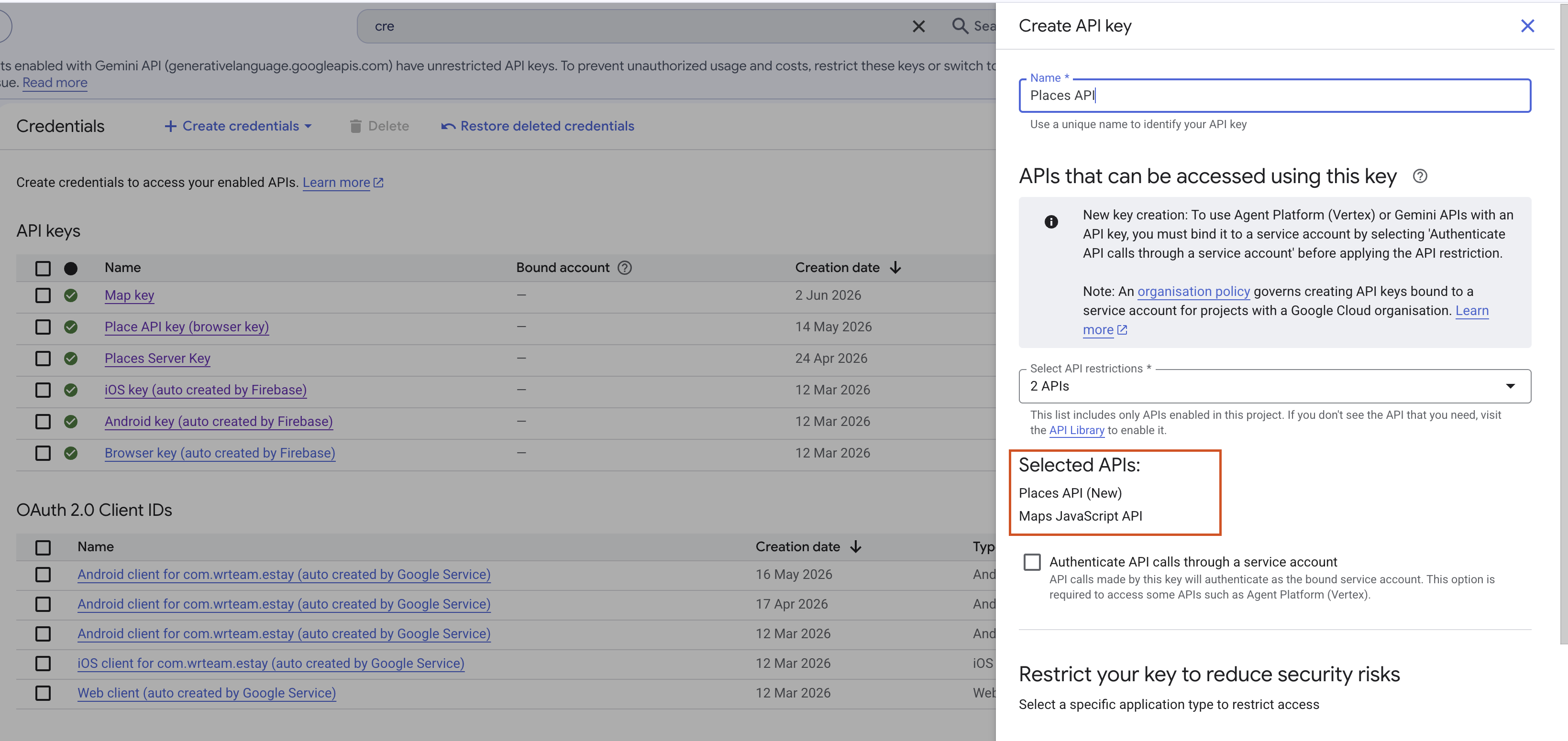
Step 3: Create the Browser Key
- Go to APIs & Services → Credentials.
- Click Create credentials → API key.
- Open the new key and set:
- Application restrictions: HTTP referrers (web sites) — add your website address (e.g.
https://yourdomain.com/*). - API restrictions: allow Maps JavaScript API and Places API (New).
- Application restrictions: HTTP referrers (web sites) — add your website address (e.g.
- Copy this key — it's your Browser Key.
Step 4: Create the Server Key
- Again in Credentials, click Create credentials → API key.
- Open this second key and set:
- Application restrictions: IP addresses — add your server's public IP address.
- API restrictions: allow Places API (New) only.
- Copy this key — it's your Server Key.
If you don't know your server's outbound IP, ask your hosting provider, or check your hosting control panel. This is the IP your server uses to make outbound requests.
Step 5: Enter the Keys in the Admin Panel
Back in Settings > General > API Integrations, fill in the Google Maps & Places API section:
| Field | What to Enter |
|---|---|
| Google Maps Browser Key | The Browser Key from Step 3 (starts with AIza...). Used for the map picker. Restrict by HTTP referrer; allow Maps JavaScript API + Places API (New). |
| Google Places Server Key | The Server Key from Step 4 (starts with AIza...). Used for nearby-places search. Restrict by IP; allow Places API (New) only. |
Both fields are masked — click the eye icon to reveal a value and confirm it's correct.
Step 6: Save
Click Save. The map picker and nearby-places search will start working immediately.
Troubleshooting
| Problem | Likely Cause & Fix |
|---|---|
| The map doesn't load / shows "For development purposes only" | The Browser Key is missing, or its HTTP referrer doesn't match your domain, or Maps JavaScript API isn't enabled. |
| Nearby places search returns nothing or errors | The Server Key is missing, or its IP restriction doesn't match your server's IP, or Places API (New) isn't enabled for it. |
| "Google Maps API key is not configured" message | No Browser Key has been saved yet — add it in this section. |
| Worked locally but not in production (or vice-versa) | Referrer/IP restrictions are environment-specific. Add your production domain and production server IP to the respective keys. |
Pasting the server key into the browser field (or vice-versa) is the most common mistake. The browser field needs the referrer-restricted key; the server field needs the IP-restricted key.