Cron Jobs (Scheduled Tasks) Setup
Your platform relies on background tasks to keep things running — confirming payments, expiring abandoned bookings, updating exchange rates, and sending notifications. These only run if you set up two cron jobs on your server.
To make this easy on shared hosting (cPanel / hPanel), the platform provides two simple web endpoints that your cron jobs just need to "visit" with curl. You don't need command-line access.
Both are required and serve different purposes:
- Scheduler — decides when each task should run.
- Queue worker — actually performs the heavier jobs (like sending notifications) that the scheduler hands off.
Setting up only one of them will leave the platform half-working (for example, payments confirmed but notifications never sent).
Step 1: Get Your Cron Commands from the Admin Panel
Your cron commands include a secret token that protects them from unauthorized access. The token is generated automatically — you don't need to set it manually.
In your admin panel, go to Settings → System Configure → Cron Jobs tab.
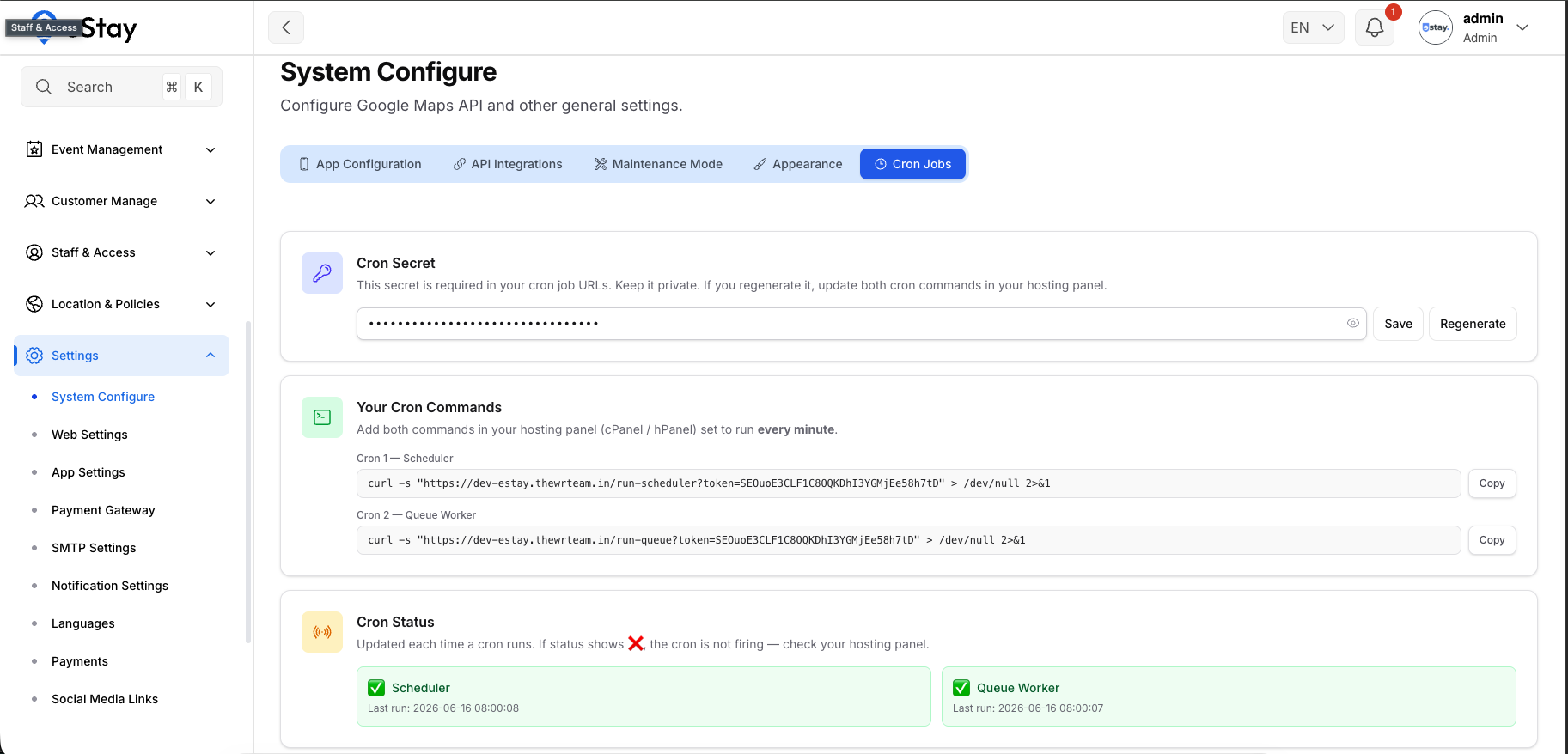
You will see:
- Cron Secret — the token embedded in your URLs. You can reveal, edit, or regenerate it here.
- Your Cron Commands — the two ready-to-copy
curlcommands with your secret already included. - Cron Status — live health indicators showing when each cron last ran.
Click the Copy button next to each command to copy it directly. No need to type anything manually.
Step 2: Add the Cron Jobs in cPanel / hPanel
- Open Cron Jobs in your hosting control panel.
- Under Common Settings, choose Once Per Minute (
* * * * *). - Paste the Cron 1 (Scheduler) command copied from the admin panel and save it.
- Repeat with the Cron 2 (Queue Worker) command.
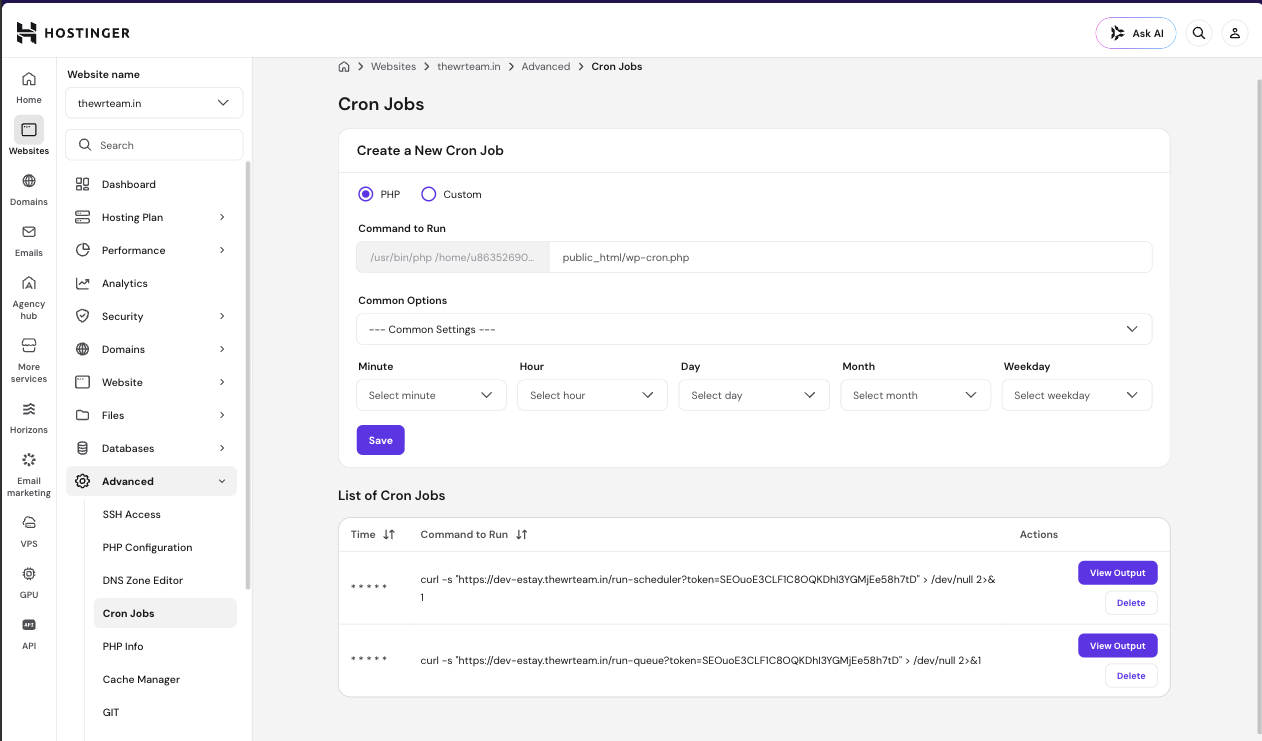
Running every minute is correct. The scheduler checks each task and only runs the ones that are actually due (some run every 5 minutes, some once a day). The queue worker processes whatever jobs are waiting, then exits.
What Each Cron Does
Cron 1 — Scheduler
This runs the platform's scheduled tasks. That single endpoint manages all of these:
| Task | Runs | What It Does |
|---|---|---|
| Expire Inventory Locks | Every minute | Releases rooms that were held during checkout but never paid for, returning them to available inventory. |
| Expire Ghost Bookings | Every 5 minutes | Cancels bookings whose payment was never completed, and marks those payments as expired. |
| Reconcile Pending Payments | Every 5 minutes | Double-checks any still-pending payment directly with the payment gateway — the safety net for payments where a webhook was missed. |
| Sync Exchange Rates | Once a day | Fetches the latest currency exchange rates for all active countries. |
| Process Scheduled Marketing Messages | Every minute | Finds marketing notifications whose send time has arrived and queues them for delivery (the queue worker then sends them). |
Reconcile Pending Payments confirms a payment if its webhook didn't arrive. If the scheduler cron isn't running, a payment with a missing webhook could stay pending indefinitely. See Payment Gateway Settings for how webhooks and reconciliation work together.
Cron 2 — Queue Worker
Some tasks are too heavy to run instantly, so the platform places them on a queue and processes them in the background. The queue worker is what actually carries them out.
The clearest example is marketing notifications. The flow is two-stage:
Marketing message → placed on the queue → Queue worker sends it
This applies to both scheduled campaigns and "send now" notifications — in every case the message is queued first, then delivered by the queue worker.
If you set up only the scheduler and not the queue worker, marketing notifications will be queued up but never actually delivered — they'll silently pile up. The queue worker cron is required for them to go out.
Step 3: Verify Everything Is Working
Go back to Settings → System Configure → Cron Jobs tab. The Cron Status section shows:
- ✅ Green — the cron ran within the last 5 minutes and is healthy.
- ❌ Red — the cron hasn't run recently. Re-check the cron entry in your hosting panel.
You can also test end-to-end:
- Place a test booking and pay → it should confirm on its own (scheduler + webhook).
- Send a test marketing notification → it should arrive shortly (queue worker).
- ✅ Copied Cron 1 (Scheduler) command from admin panel and added to hosting — every minute
- ✅ Copied Cron 2 (Queue Worker) command from admin panel and added to hosting — every minute
- ✅ Cron Status in admin panel shows both as green after a minute
Rotating the Cron Secret
If you suspect your cron URLs have been compromised, go to Settings → System Configure → Cron Jobs tab and click Regenerate next to the Cron Secret.
Regenerating the secret invalidates the old URLs immediately. Your cron jobs will return 403 until you copy the new commands from the admin panel and update them in your hosting panel.