Staff, Roles & Permissions
This module controls who can log into your admin panel and what they're allowed to do. It has two pages that work together, both found under the Staff & Access group in the sidebar:
| Page | Purpose |
|---|---|
| Roles & Permissions | Define access levels — a named set of permissions (e.g. "Front Desk", "Content Manager"). |
| Staff Management | Create and manage the people (staff accounts) who log in, and assign each one a role. |
How They Work Together
Think of it in three parts:
- Permissions — individual abilities, grouped by module (a feature area like Bookings or Properties) and action (View, Create, Edit, Delete).
- Role — a bundle of permissions you name once and reuse (e.g. a "Receptionist" role might allow View + Edit on Bookings only).
- Staff member — a person with a login, assigned one role, which decides exactly what they see and can do.
Staff member → has one → Role → is a bundle of → Permissions (module × action)
Set up your Roles first, then create your Staff and assign them a role. (You can also assign staff to a role from the role screen itself.)
Part 1 — Roles & Permissions
A role is a reusable set of permissions. Instead of configuring access for each person, you build a role once and assign it to many staff.
The Roles List
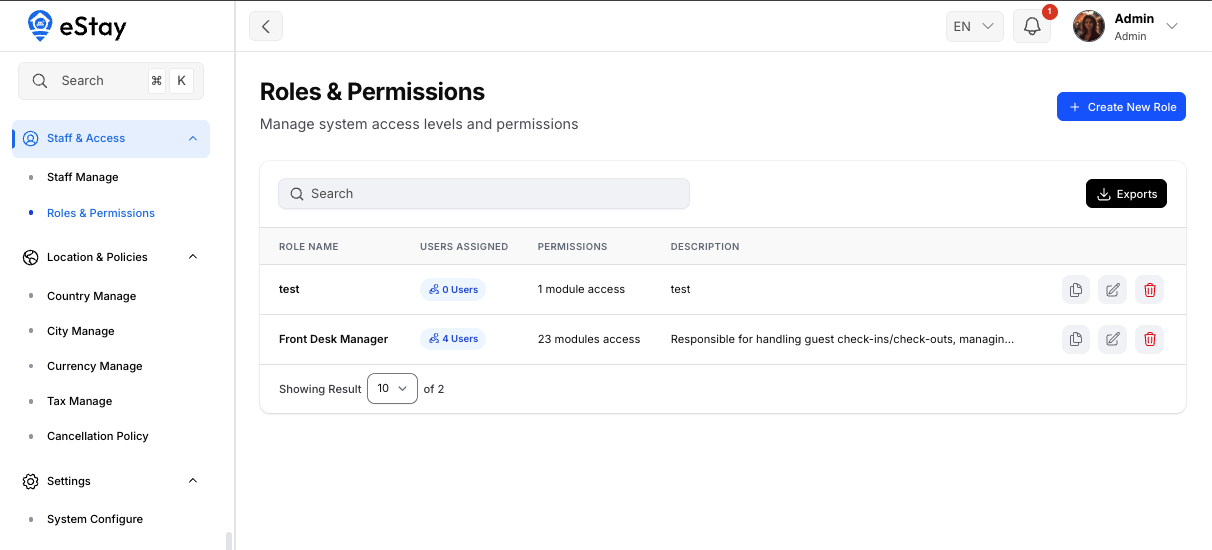
Navigate to Staff & Access > Roles & Permissions. The table shows:
| Column | Description |
|---|---|
| Role Name | The role's name (e.g. Front Desk). |
| Users Assigned | How many staff currently have this role. |
| Permissions | A summary like "5 modules access" — how many feature areas the role can touch. |
| Description | A short note on what the role is for. |
You can search by role name and export the list (CSV/Excel).
Creating a Role
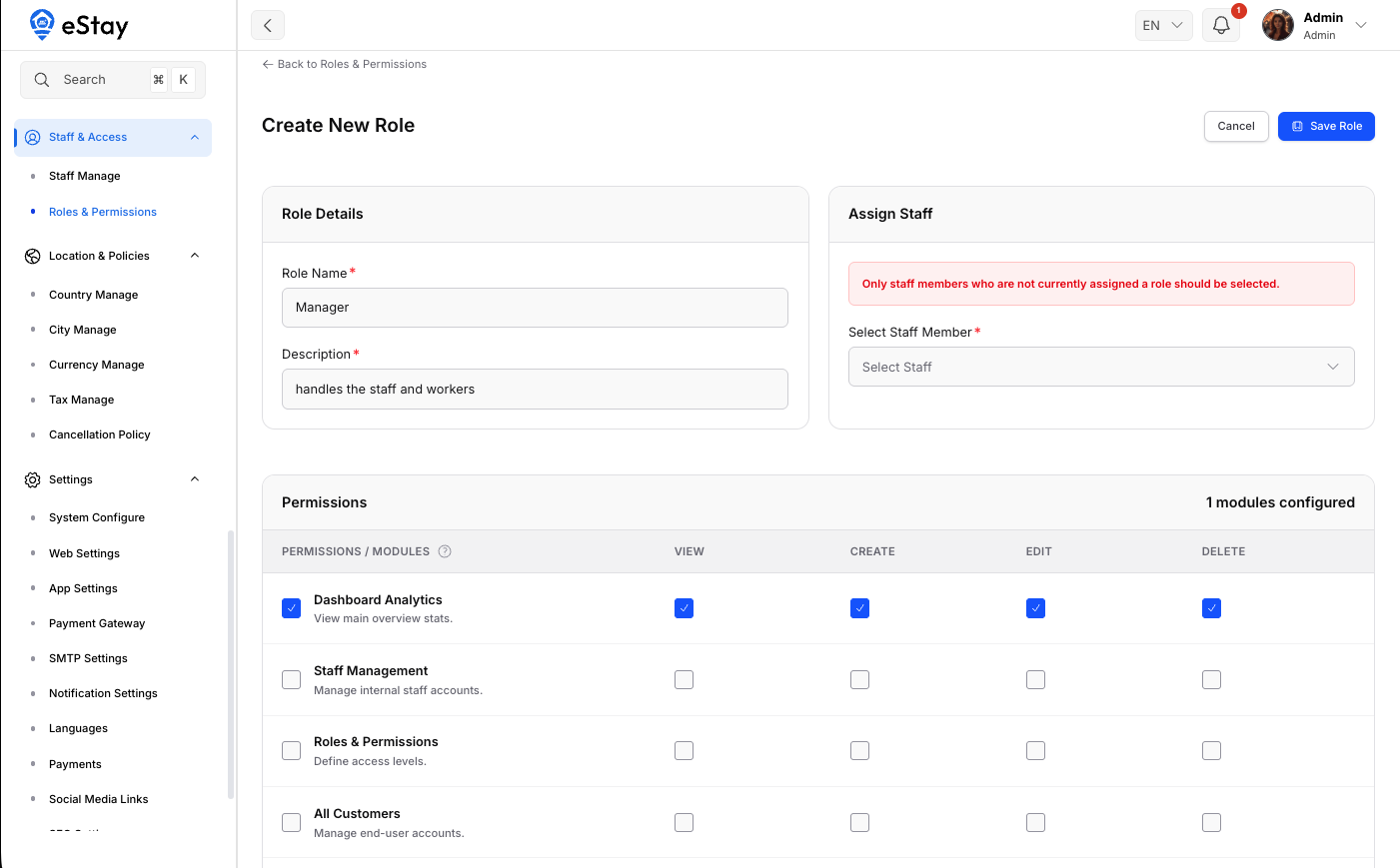
Click Create New Role at the top right, then fill in:
| Field | Description |
|---|---|
| Role Name | Required. A clear, descriptive name. |
| Description | Required. What this role is allowed to do / who it's for. |
Setting Permissions
Below the details is the permission matrix — one row per module, with four checkboxes each:
| Action | What it allows |
|---|---|
| View | See the module's page and data. |
| Create | Add new records. |
| Edit | Change existing records. |
| Delete | Remove records. |
You can tick individual boxes, or toggle a whole row (all four actions) for a module at once.
The available modules are:
| Module | Covers |
|---|---|
| Dashboard Analytics | Main overview stats |
| Staff Management | Internal staff accounts |
| Roles & Permissions | Access levels |
| All Customers | End-user accounts |
| Payment Transactions | Customer payment transactions |
| Manual Refunds | Manual bank-transfer refunds |
| All Properties | Property listings |
| Room Types | Room type configuration |
| Amenities & Facilities | Global amenities |
| Property Rules | House rules |
| All Bookings | Customer reservations |
| Event Management | Event content |
| Reviews & Ratings | User review moderation |
| Country Settings | Supported countries |
| City Management | Cities and regions |
| Currency Settings | Exchange rates |
| Tax Rules | Global tax rates |
| Promo Codes | Discount campaigns |
| Home Page Content | Homepage content |
| Push Notifications | System alerts |
| Blogs & Articles | Help center articles |
| FAQ Management | Help center FAQs |
| General Settings | App-wide configuration |
Some modules cover several pages. For example, All Bookings also controls Today's Check-ins, Check-outs, and the Availability Calendar; General Settings covers System Settings, Languages, Activity Logs, SEO, and more. Granting a module grants its related pages.
Assigning Staff to the Role (optional)
While creating or editing a role, you can directly assign staff to it by searching and selecting them.
The staff picker only shows staff who don't already have a role. A staff member can hold a single role at a time — assigning a new one replaces the old.
When done, click Save. The role is created with its permissions, and any selected staff are assigned to it.
Managing Existing Roles
From the Roles list, each role has these actions:
| Action | What it does |
|---|---|
| Duplicate | Creates a copy of the role (named "… (Copy)") with the same permissions — a fast way to base a new role on an existing one. |
| Edit | Change the role's name, description, permissions, or assigned staff. |
| Delete | Remove the role. |
Changing a role's permissions immediately changes access for every staff member assigned to it.
Part 2 — Staff Management
A staff member is a person who can log into the admin panel. Each staff account is tied to a country and a property, and is given a role that controls their access.
The staff list shows staff for your currently selected country and property. New staff are created under your current country and assigned to a property. Switch the country/property in the topbar to manage staff elsewhere.
The Staff List
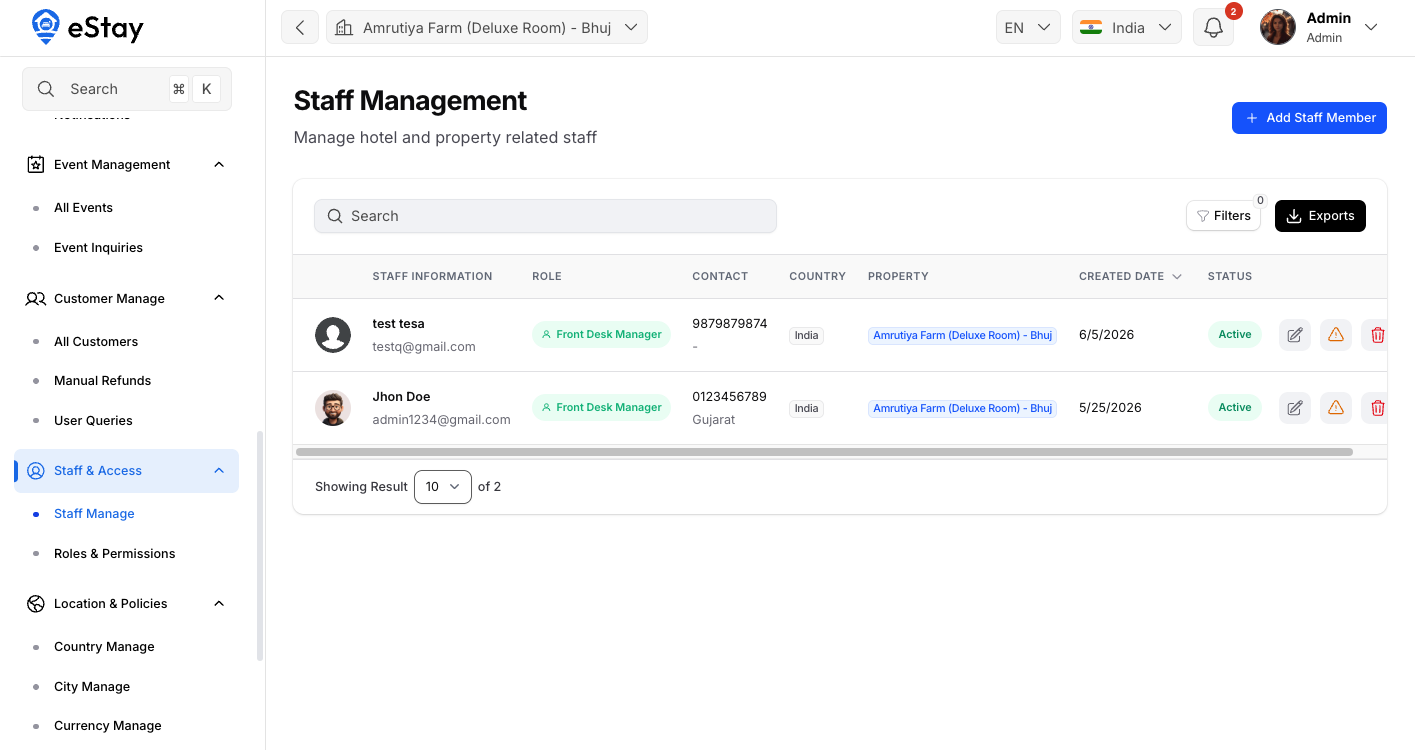
Navigate to Staff & Access > Staff Management. The table shows:
| Column | Description |
|---|---|
| Staff Information | Photo, name, and email. |
| Role | The assigned role as a colored badge — or Not Assigned if they have no role yet. |
| Contact | Phone number and state/province. |
| Country | The country the staff belongs to. |
| Property | The property they're assigned to. |
| Created Date | When the account was created. |
| Status | Active (can log in) or Inactive (blocked). |
You can search by name/email, filter by status, and export the list.
Adding a Staff Member
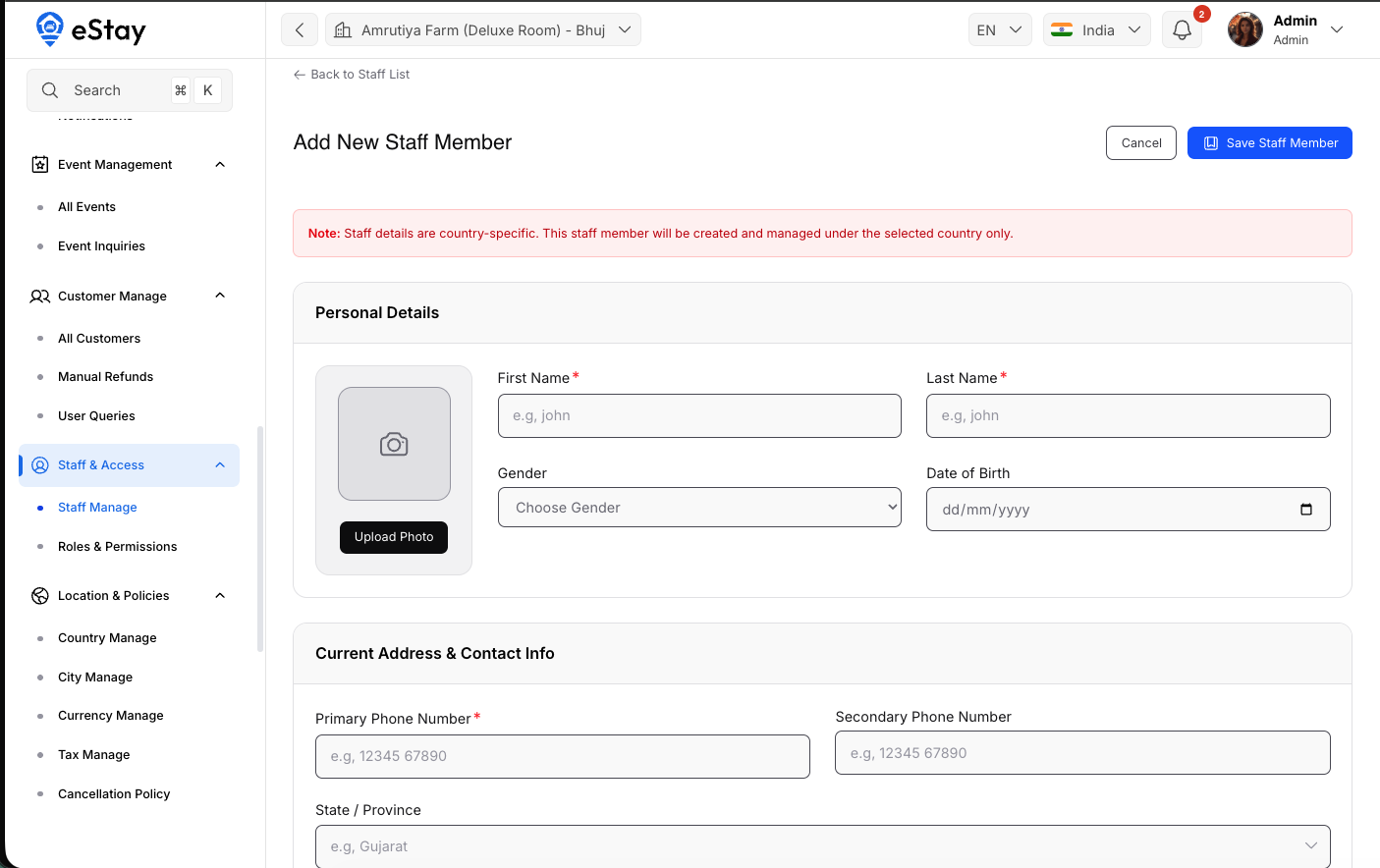
Click Add Staff Member, then complete the form:
| Field | Required | Notes |
|---|---|---|
| First Name | Yes | Letters, spaces, hyphens, apostrophes only. |
| Last Name | Yes | Same format as first name. |
| Gender | No | Optional. |
| Date of Birth | No | If provided, the person must be at least 18 years old. |
| Primary Phone | Yes | 7–15 digits. |
| Secondary Phone | No | 7–15 digits. |
| State / Province | No | |
| Zip Code | No | Letters, numbers, spaces, hyphens. |
| Address | Yes | Up to 500 characters. |
| Yes | Must be unique — this is their login. | |
| Password | Yes (on create) | Minimum 8 characters. On edit, leave blank to keep the current password. |
| Avatar | No | Image up to 5 MB. |
| Document Image | Yes (on create) | An ID/verification image, up to 5 MB. |
| Assigned Property | Yes | The property this staff member works at. |
Click Save to create the account. The staff member can then log in with their email and password.
A new staff member starts with no role (shown as "Not Assigned") and therefore limited access. Assign them a role from Roles & Permissions — either edit the role and add them, or create a role and select them. Until they have a role, they can't access protected modules.
Managing Staff
Each staff row has these actions:
| Action | What it does |
|---|---|
| Edit | Update the staff member's details (or change their password). |
| Block / Unblock | Toggle the account between Active and Inactive. A blocked (Inactive) staff member cannot log in. |
| Delete | Remove the staff member. Their role assignment is also removed. |
Use Block to temporarily revoke access (e.g. someone on leave) — it's reversible. Use Delete only to permanently remove someone.
Putting It Together — A Typical Setup
- Go to Roles & Permissions → Create New Role. Name it (e.g. Front Desk), describe it, and tick the modules/actions they should have (e.g. View + Edit on All Bookings).
- Go to Staff Management → Add Staff Member. Fill in their details, password, and assigned property.
- Assign the staff member the role — either from the role's Edit screen, or by selecting them when creating the role.
- The new staff member logs in and sees only the modules their role allows.
Access isn't just hidden in the menu — staff are blocked from opening pages and performing actions their role doesn't permit, even via direct links.