General Settings
This page covers the smaller, everyday configuration screens found under Settings in your admin panel. None of these need a guide of their own, so they're grouped here:
| Section | What it controls |
|---|---|
| Branding | Logo, default image, brand color, and contact details. |
| General — Login & Maintenance | Allowed sign-in methods, maintenance mode, and primary color. |
| Currency | Which currencies your platform supports. |
| Web Settings | Website logo/favicon, footer, cookie banner, and frontend URL. |
| App Settings | Mobile app store links and force-update rules. |
These are platform-wide settings (not per-country). On these screens the country and property switchers in the topbar are hidden. Each screen has its own Save button — changes apply immediately after saving.
Branding
Settings → Branding. Controls your visual identity and contact details, shown across the website and app.
Visual Identity
| Field | Description |
|---|---|
| Logo | Your main logo, shown on the website and app. PNG, JPG, WebP, or SVG, max 1 MB. |
| Default Image | A placeholder image used wherever no image is available. Same formats, max 1 MB. |
| Primary Color | Your main brand color, used across the app and website. Pick a color or enter a hex code (e.g. #2563eb). |
Contact Information
These details appear in the contact sections of the app and website.
| Field | Description |
|---|---|
| Contact Address | Your business address (up to 500 characters). |
| Contact Email | A valid contact email address. |
| Contact Phone | Include the country code (e.g. +91) so international users can dial directly. |
General — Login & Maintenance
Settings → General. This screen has a few tabs. (The API Integrations tab — Google Maps, Exchange Rate, and IP Geolocation keys — is covered in its own guides.) The remaining tabs:
App Configuration
| Field | Description |
|---|---|
| Allowed Authentication Methods | Choose which sign-in options customers can use: Email & Password, Phone Number, Google, Apple. At least one must be selected. |
Maintenance Mode
| Field | Description |
|---|---|
| Maintenance Mode | When turned on, the app and website show a maintenance message to users instead of the normal content. Turn it off to go live again. |
While Maintenance Mode is on, customers cannot use the app or website — they'll only see the maintenance message. Remember to turn it back off when you're done.
Currency
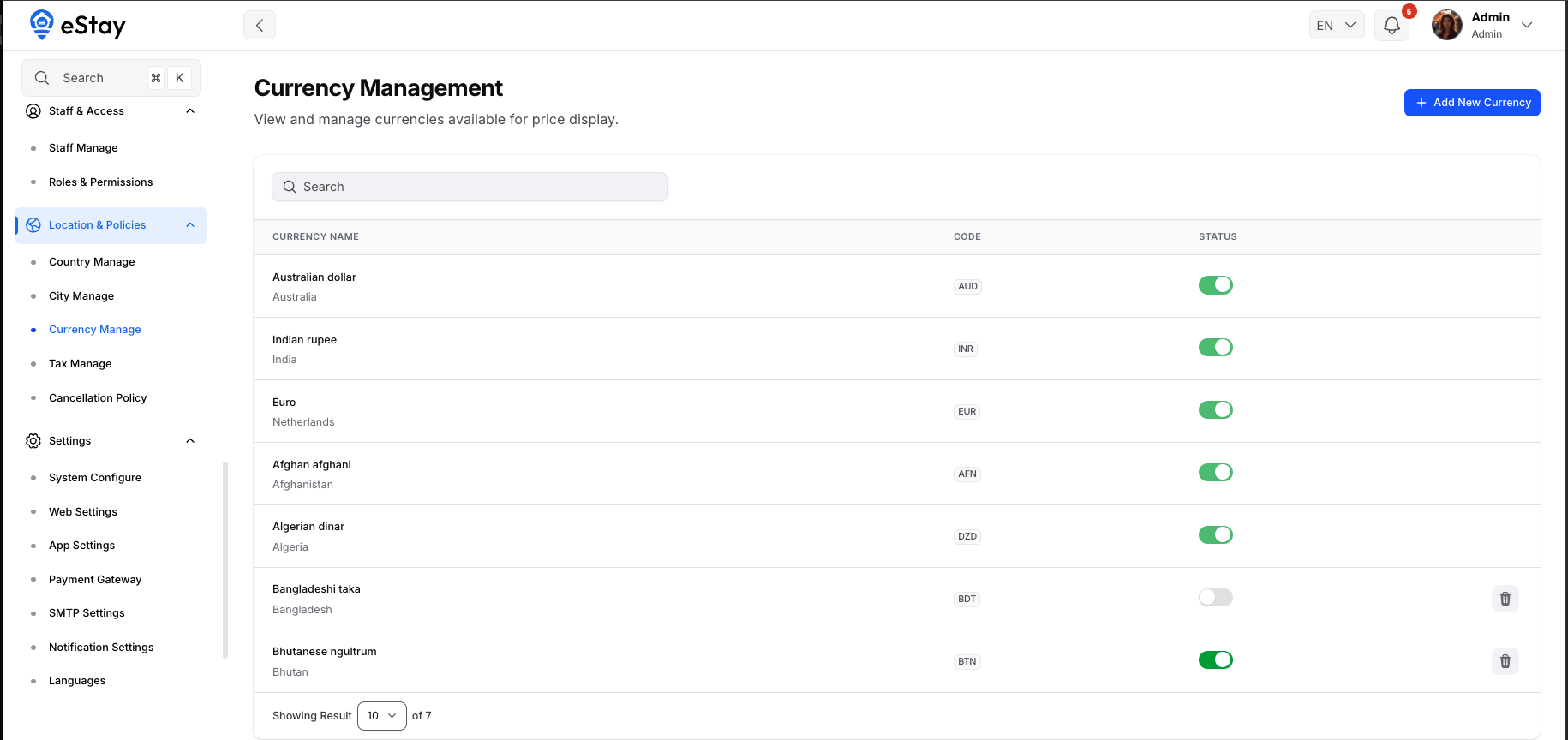
Location & Policies → Currency. Manage which currencies your platform supports for displaying prices.
Adding a Currency
- Click Add New Currency.
- In Choose Currency to Add, search and pick a currency (listed as Country — Currency Name (CODE)).
- Confirm — the currency is added to your list.
You pick from a ready-made list of world currencies. Currencies you've already added are hidden from the dropdown so you can't add duplicates.
Managing Currencies
The list shows each currency's name, country, and code, with:
| Control | What it does |
|---|---|
| Status | A toggle to enable or disable a currency instantly. |
| Delete | Remove a currency you no longer need. |
The currency you chose during initial setup cannot be disabled or deleted — its toggle is locked and the delete button is hidden. This keeps your platform's base currency stable.
Web Settings
Settings → Web Settings. Configuration specific to your customer-facing website.
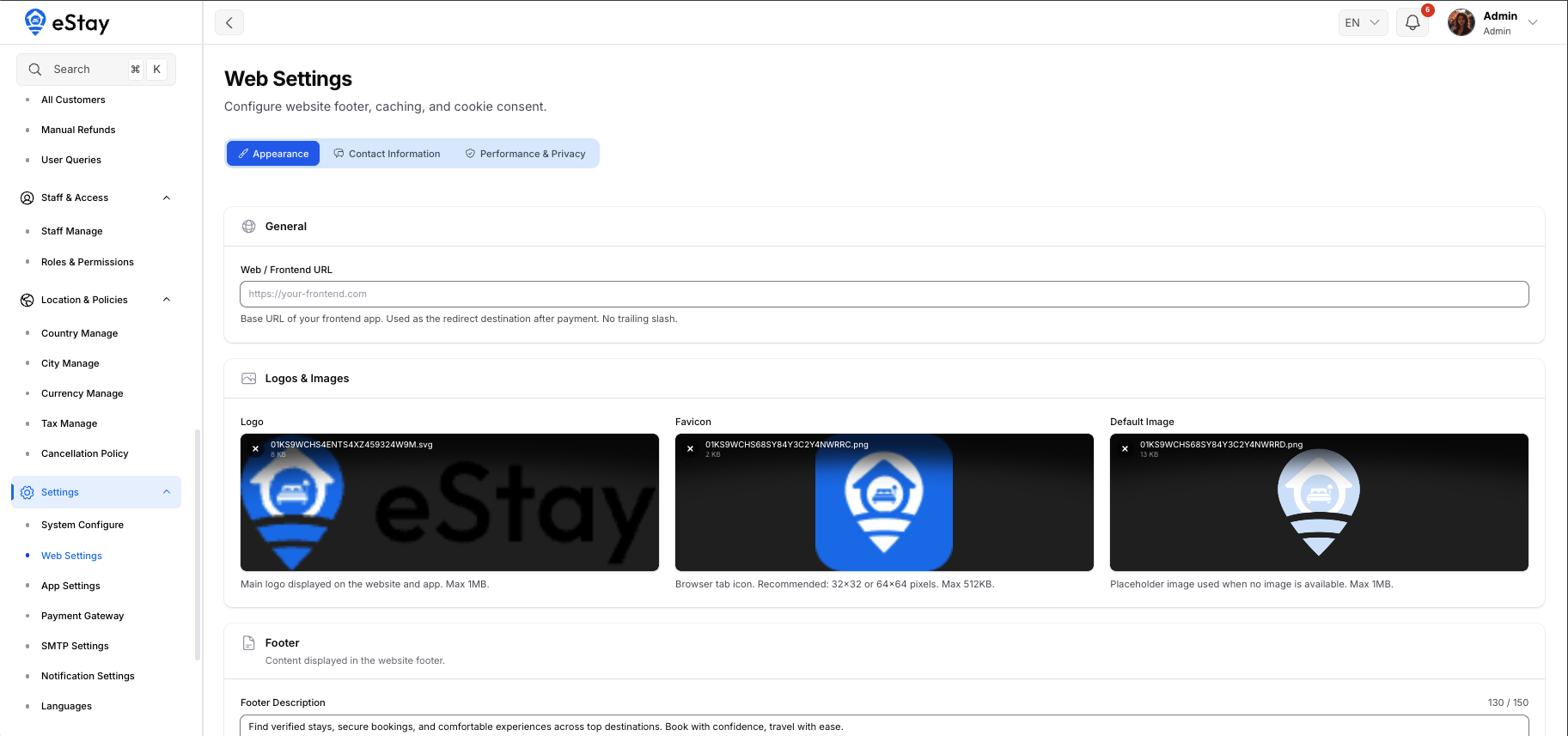
Appearance
| Field | Description |
|---|---|
| Frontend Web URL | The public address of your website (trailing slash is removed automatically). |
| Logo | The website logo. |
| Favicon | The small icon shown in the browser tab. Recommended 32×32 or 64×64 px, max 512 KB. |
| Default Image | Placeholder image for the website. |
| Footer Description | The text shown in the website footer. |
Performance & Privacy
| Field | Description |
|---|---|
| Enable Cookies | When on, shows a cookie-consent banner to visitors on the web. |
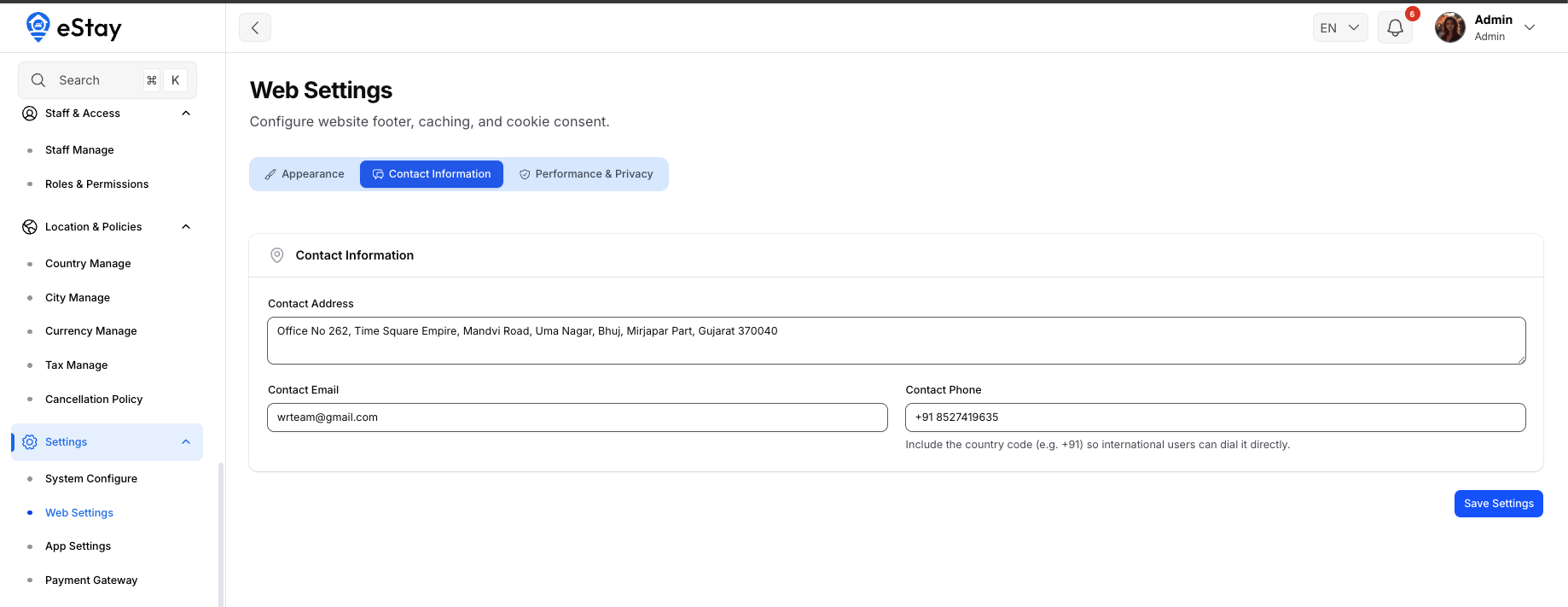
Contact Information
The same contact address, email, and phone shown on the website's contact sections.
App Settings
Settings → App Settings. Configuration for your mobile app.
App Store Links
| Field | Description |
|---|---|
| Google Play Store URL | Link to your app on Google Play. |
| Apple App Store URL | Link to your app on the Apple App Store. |
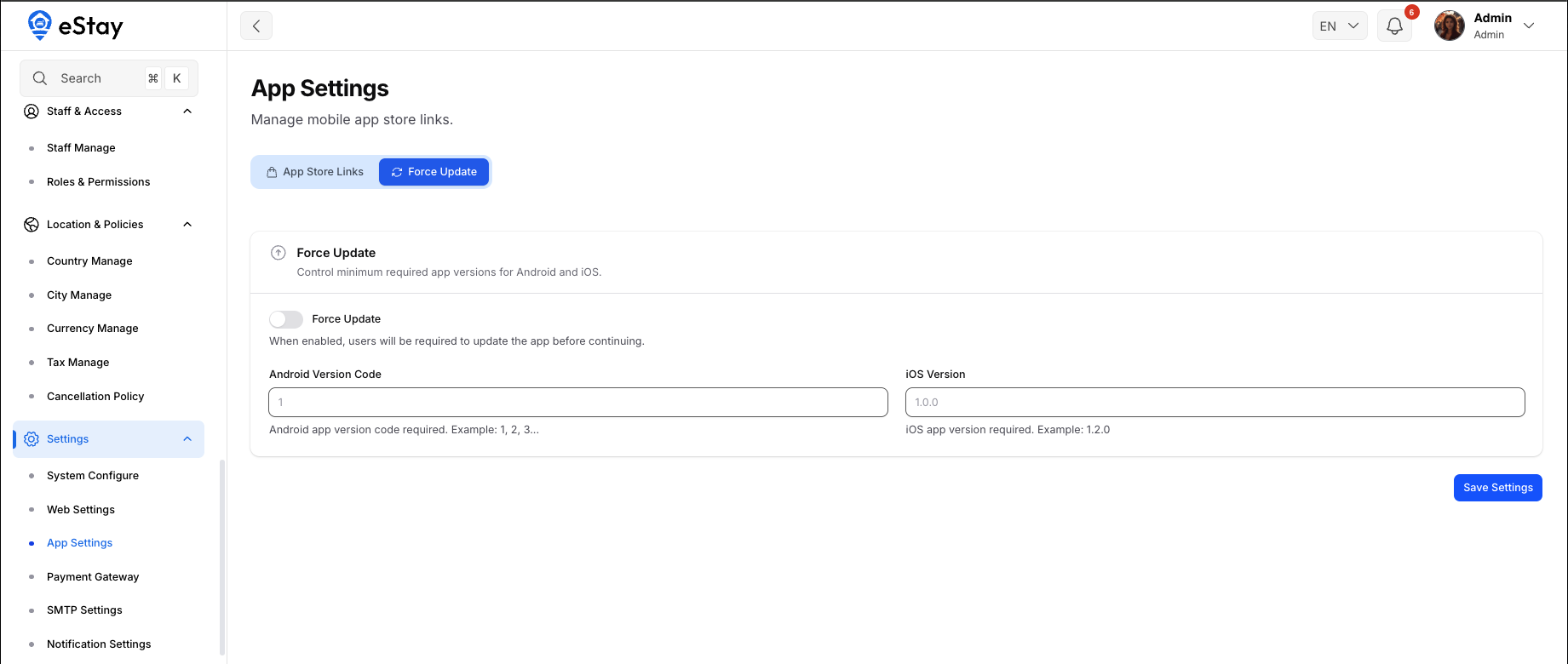
Force Update
| Field | Description |
|---|---|
| Force Update | When enabled, users must update the app before they can continue using it. |
| Android Version Code | The minimum required Android app version. |
| iOS Version | The minimum required iOS app version (e.g. 1.2.0). |
Turn this on after releasing an important app update (e.g. a critical fix) to make sure everyone moves to the new version. Set the version numbers to the lowest version you want to allow.
Other settings have their own dedicated pages: Notification (Firebase) Settings, Payment Gateway Settings, Languages, SMTP / Mail, and the API keys (Google Maps, Currency Exchange, IP Geolocation).