Tax Configuration
Configure the taxes applicable to your property bookings based on your local regulations. You must set up at least one active tax to complete this step.
Step 1: Navigate to Tax Management
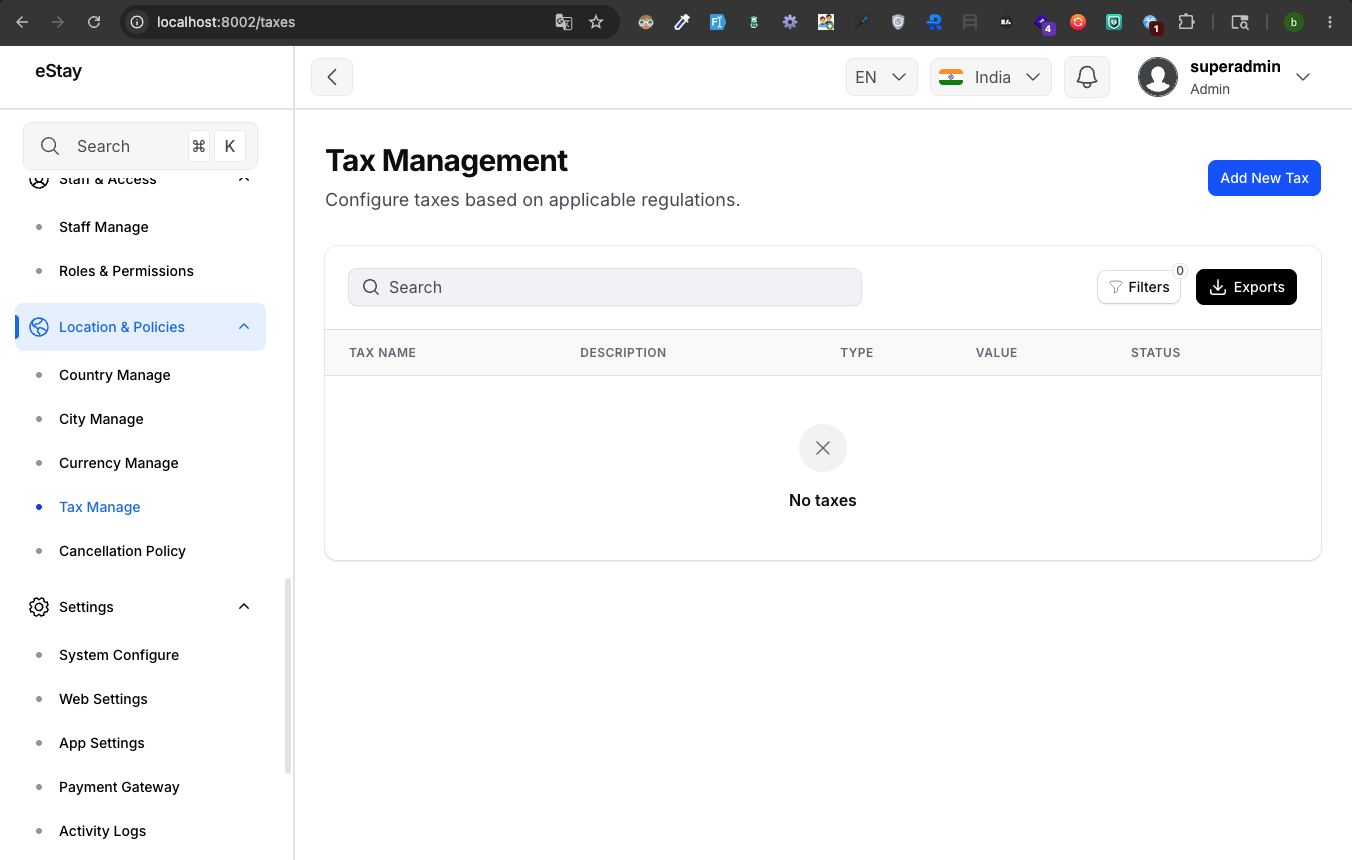
In your admin dashboard, navigate to Location Policies > Taxes using the left sidebar.
Step 2: Add a New Tax
Click the Add New Tax button located at the top right of the page. A modal window will appear.
Step 3: Fill in Tax Details
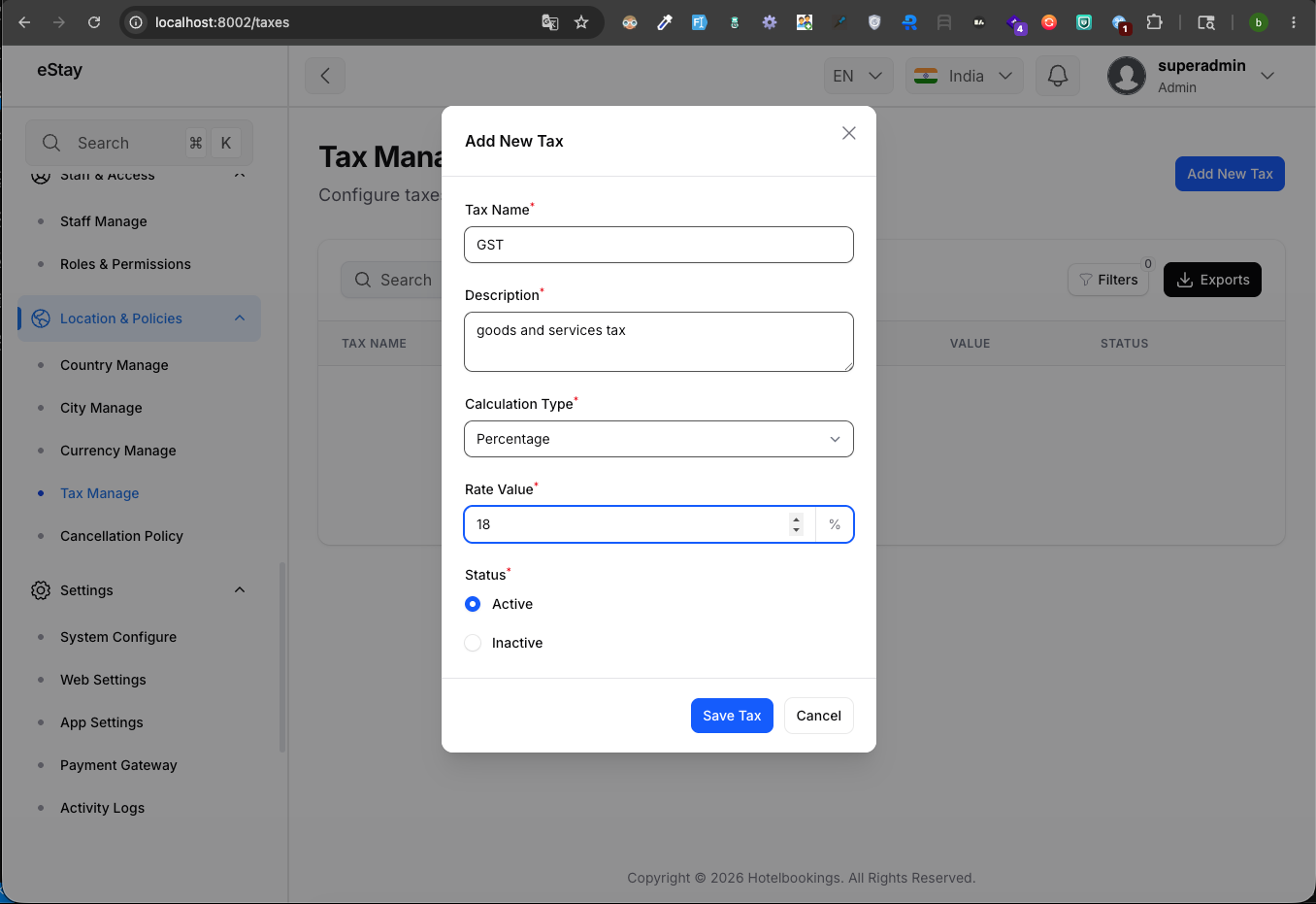
Fill out the tax configuration form with the following information:
| Field | Description |
|---|---|
| Tax Name | Enter a descriptive name for the tax (e.g., "VAT", "City Tax", "GST"). |
| Description | Provide a brief explanation of what this tax is for. |
| Calculation Type | Choose how the tax is calculated: - Percentage: Calculates a percentage of the booking total. - Fixed: Adds a flat monetary amount to the booking. |
| Rate Value | Enter the value. If "Percentage" is selected, enter a number up to 100. If "Fixed" is selected, enter the flat amount in your currency. |
| Status | Choose whether this tax should be Active (applied to new bookings) or Inactive. |
Step 4: Save the Tax
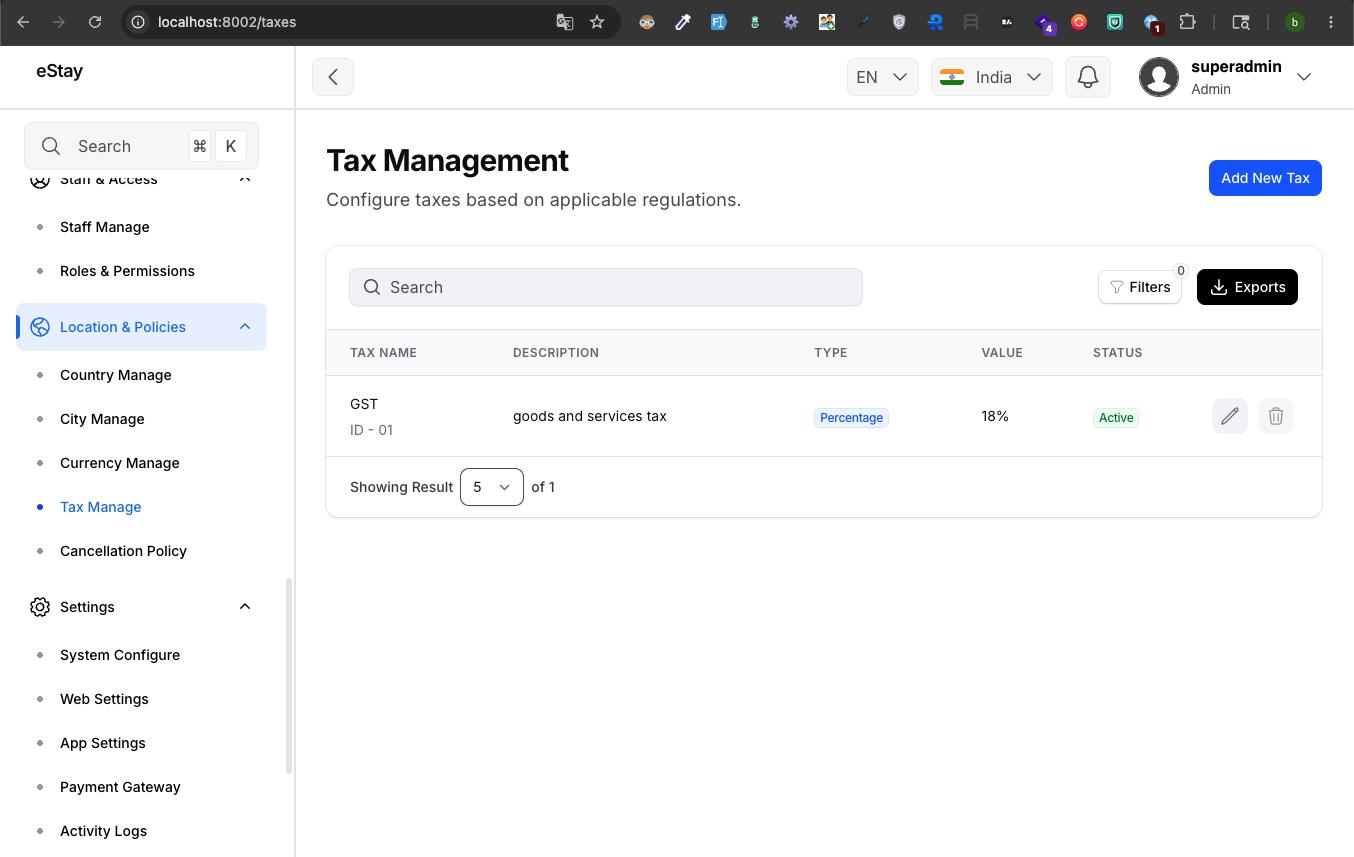
Click the Save Tax button at the bottom of the modal. The tax will now be applied to all future property bookings according to its configuration.
warning
You cannot delete the last remaining tax if it is the only one in the system. The platform requires at least one tax configuration to exist.