Countries
The Countries page (under Location & Policies) is where you manage the countries your platform operates in. Each country carries its own currency, phone code, and tax rules, and most other data in the panel (properties, bookings, customers, promo codes) is organized by country.
This is a global management page — the country/property switchers are hidden here because this is where countries themselves are defined.
Step 1: Open Countries
In your admin dashboard, go to Location & Policies > Countries. You'll see every country you've added.
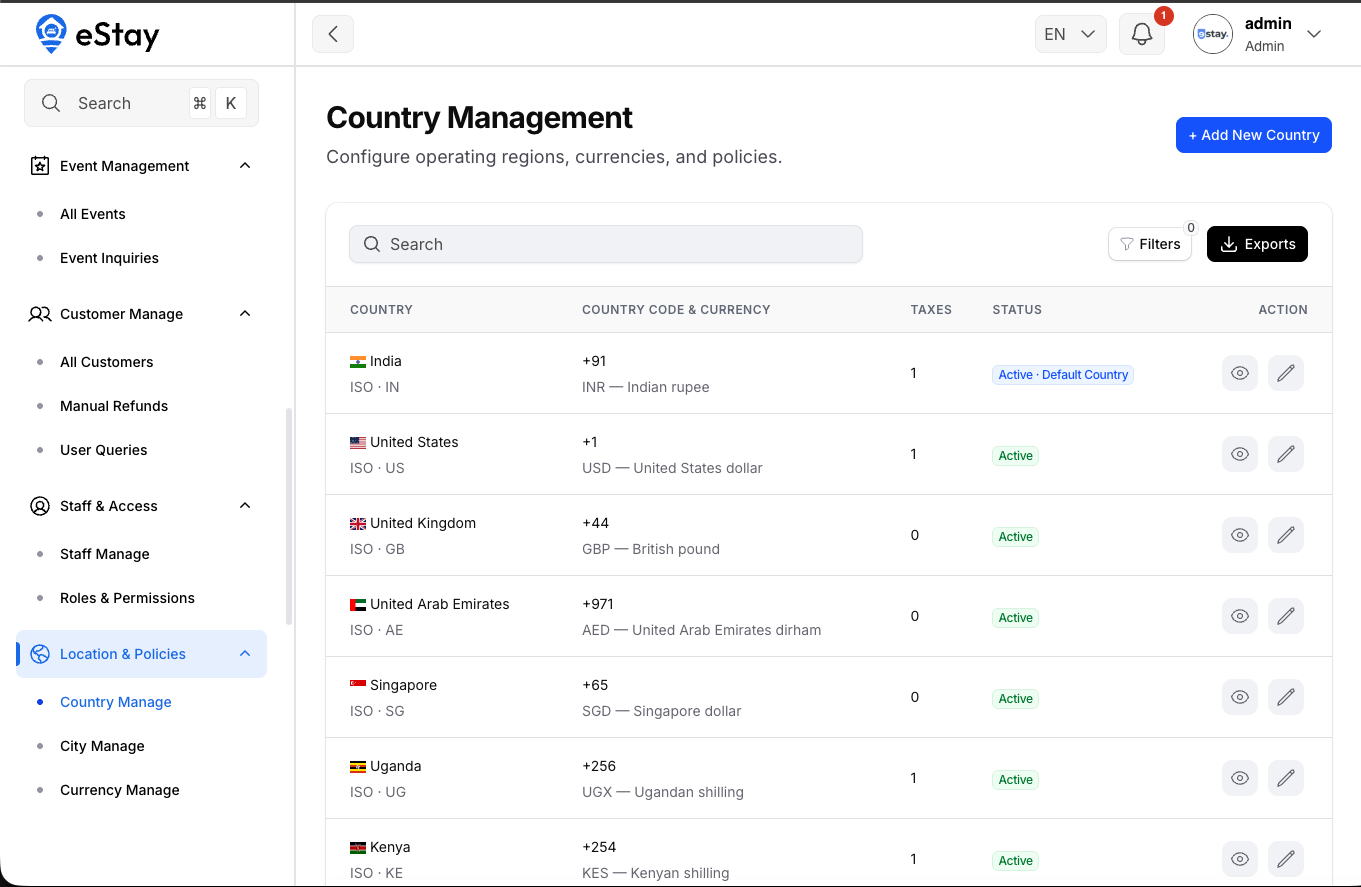
Understanding the List
| Column | Description |
|---|---|
| Country | Flag, name, and ISO code. |
| Country Code / Currency | The dialing code (e.g. +44) and the currency (code + name). |
| Taxes | How many tax rules are configured for the country. |
| Status | Active, Active · Default, or Inactive. |
You can search, filter by status, and export the list.
Step 2: Add a Country
Click Add New Country. A 2-step wizard opens.
Step A — Country Details
| Field | Description |
|---|---|
| Choose Country to Add | Pick from the built-in country database. Countries you've already added are hidden, so each can only be added once. |
| (Preview) | After choosing, a preview shows the flag, ISO code, dialing code, and currency — all filled in automatically. |
| Status | Set the country Active or Inactive to start. |
Step B — Country-Specific Taxes
Add any taxes that apply to bookings in this country. For each tax:
| Field | Description |
|---|---|
| Tax Name | e.g. "VAT", "City Tax". |
| Description | (Optional) What the tax is for. |
| Calculation Type | Percentage or Fixed. |
| Rate Value | The percentage (e.g. 18%) or fixed amount. |
You can add multiple taxes, or none for now (you can add them later). Click Save Country to finish.
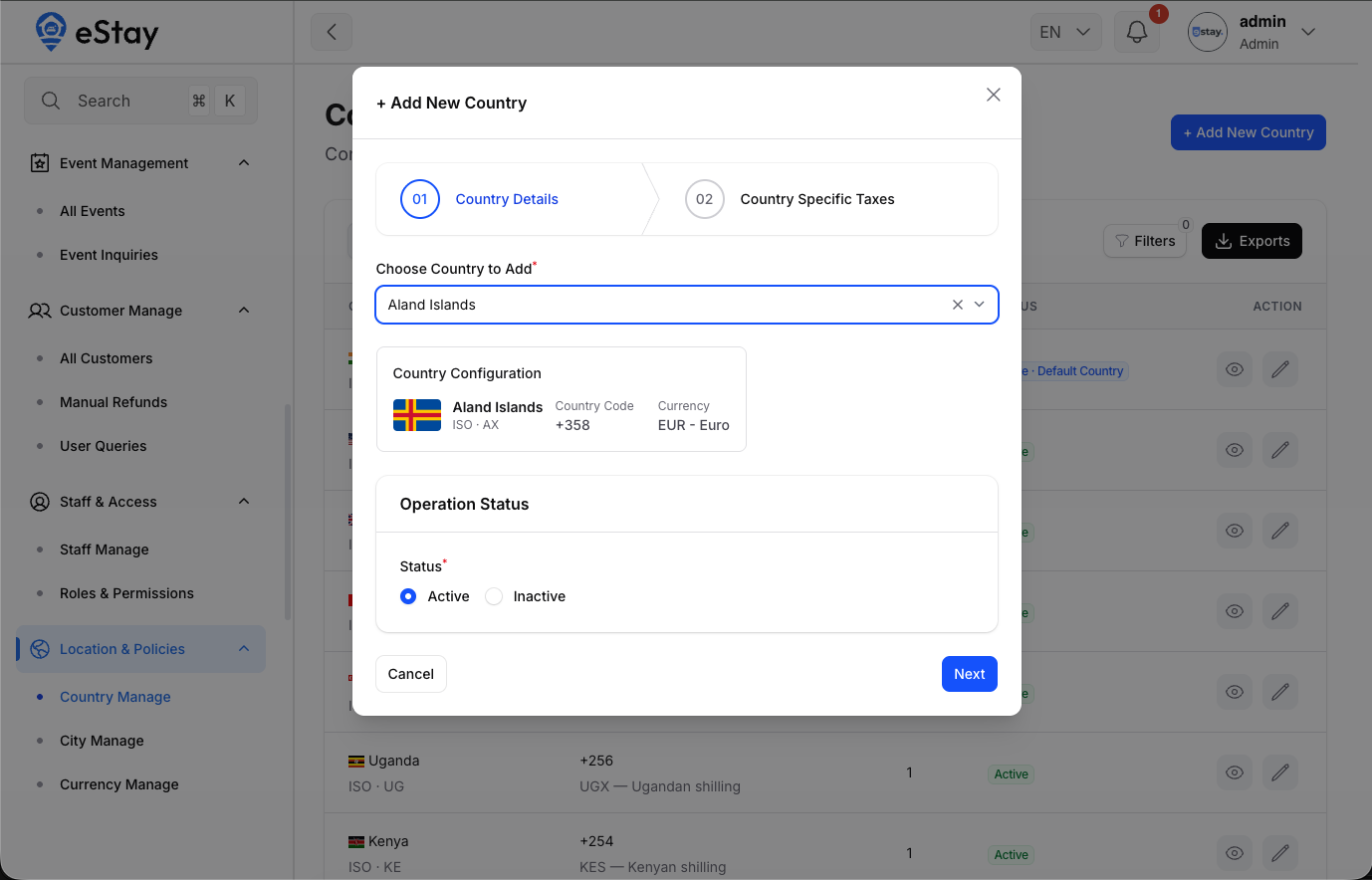
You don't enter the currency or dialing code manually — they come from the built-in database for the country you select.
Step 3: View or Edit a Country
- View (eye) — see the country's full details: flag, ISO, currency, phone code, and its list of taxes.
- Edit (pencil) — change the operation status (Active/Inactive) and the Default Country setting. The country's core info (name, ISO, currency, phone code) is fixed and shown for reference.
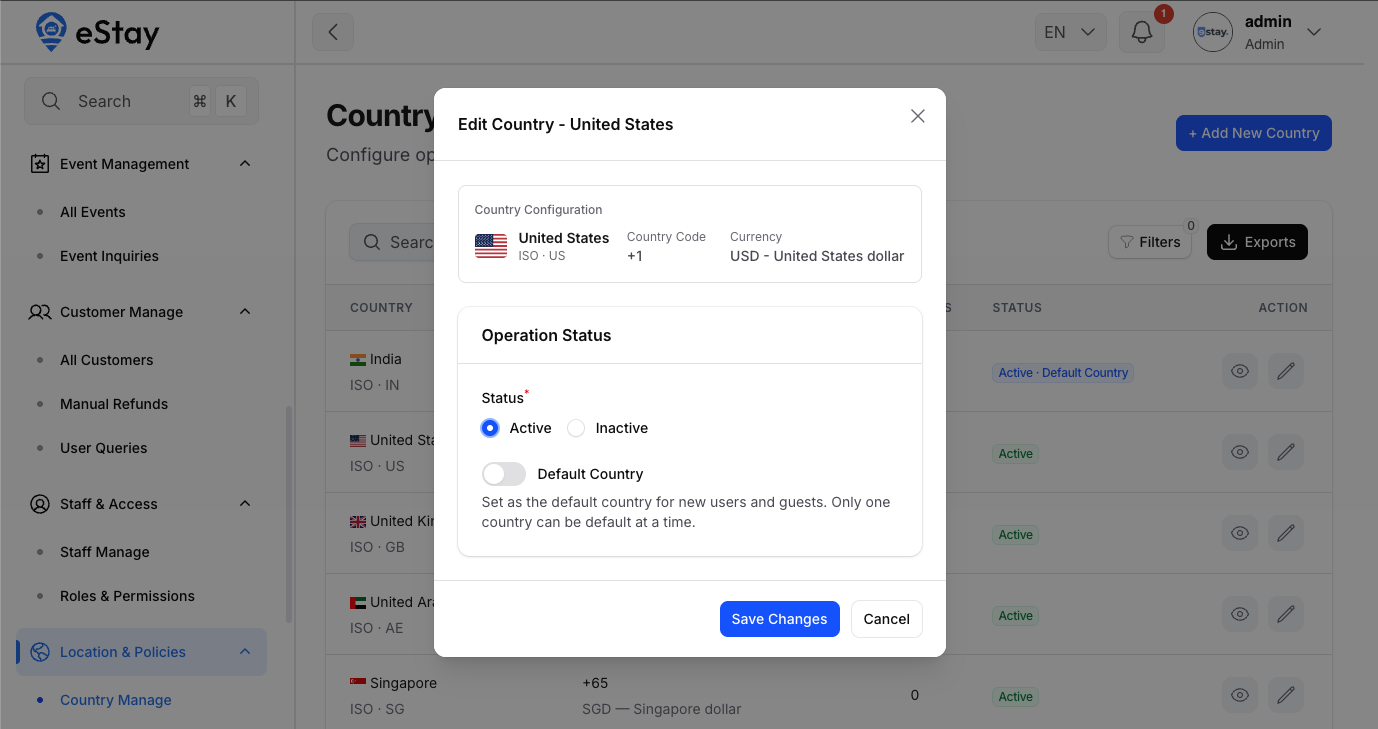
One country is marked as the default. The default country cannot be set to Inactive — you must first make another country the default. This keeps the platform from being left with no active default.