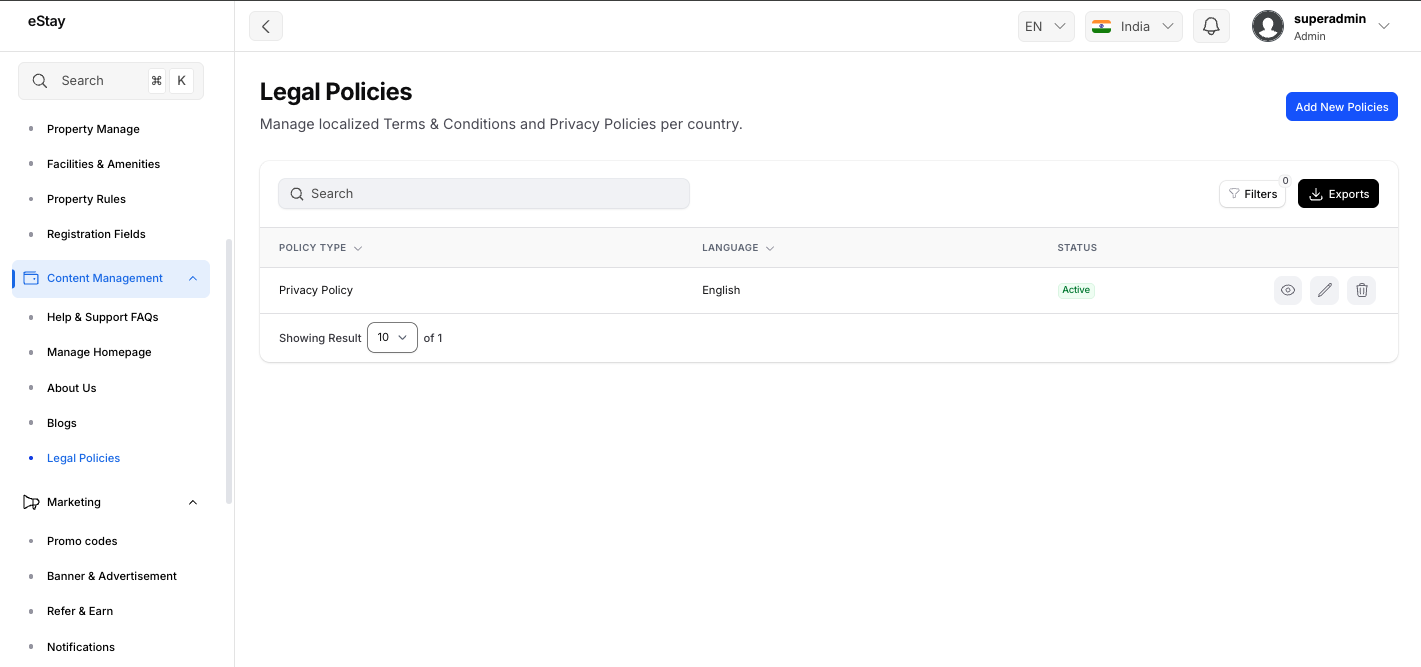
Legal Policy
Ensure your platform complies with standard regulations by providing essential legal documents, such as Terms of Service and Privacy Policies.
Step 1: Navigate to Legal Policies
In your admin dashboard, navigate to Content Management > Legal Policies using the left sidebar.
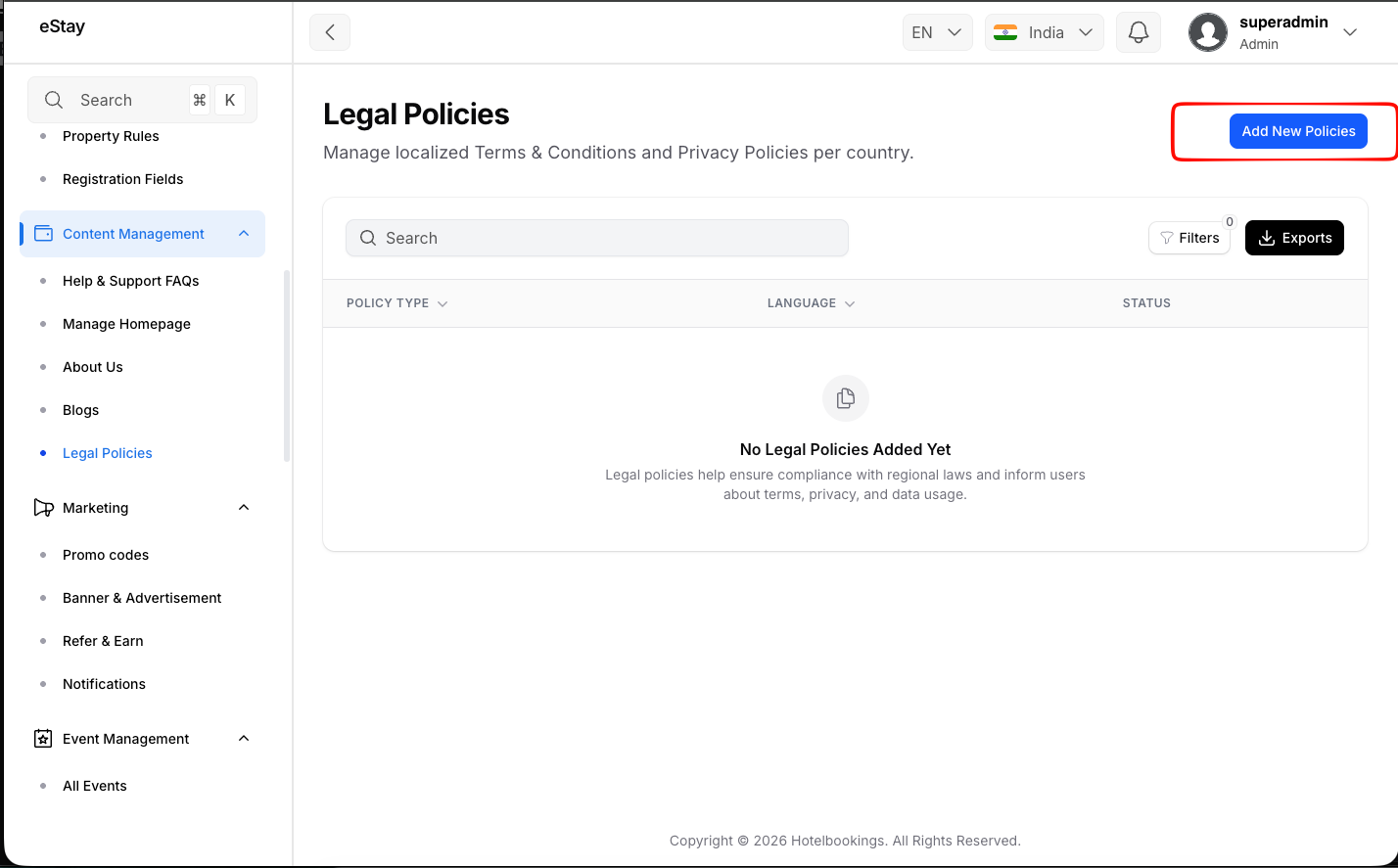
Step 2: Create a New Policy
Click the Add new policy button located at the top right of the page.
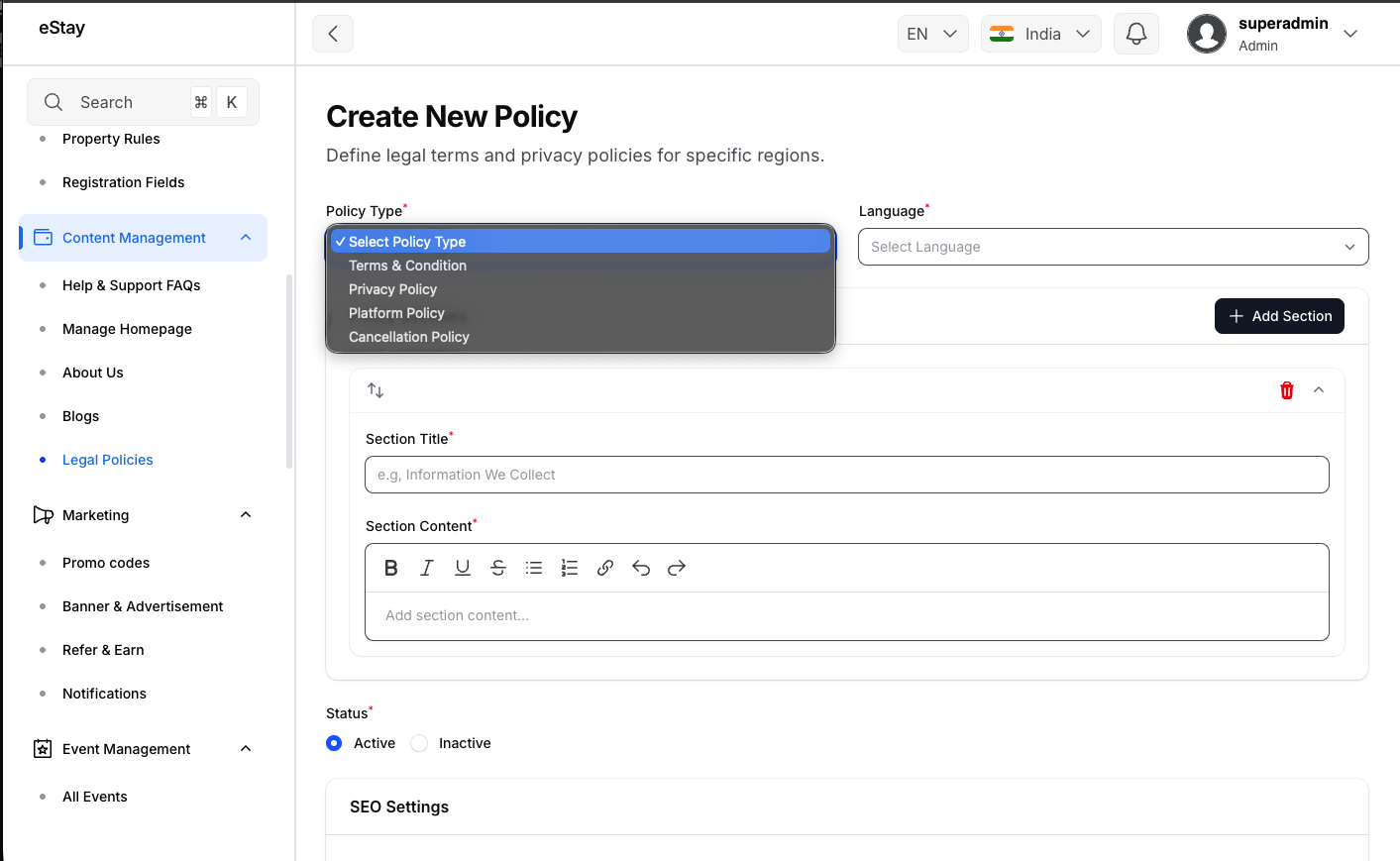
Step 3: Define Policy Basics
Fill in the core details for your new policy:
| Field | Description |
|---|---|
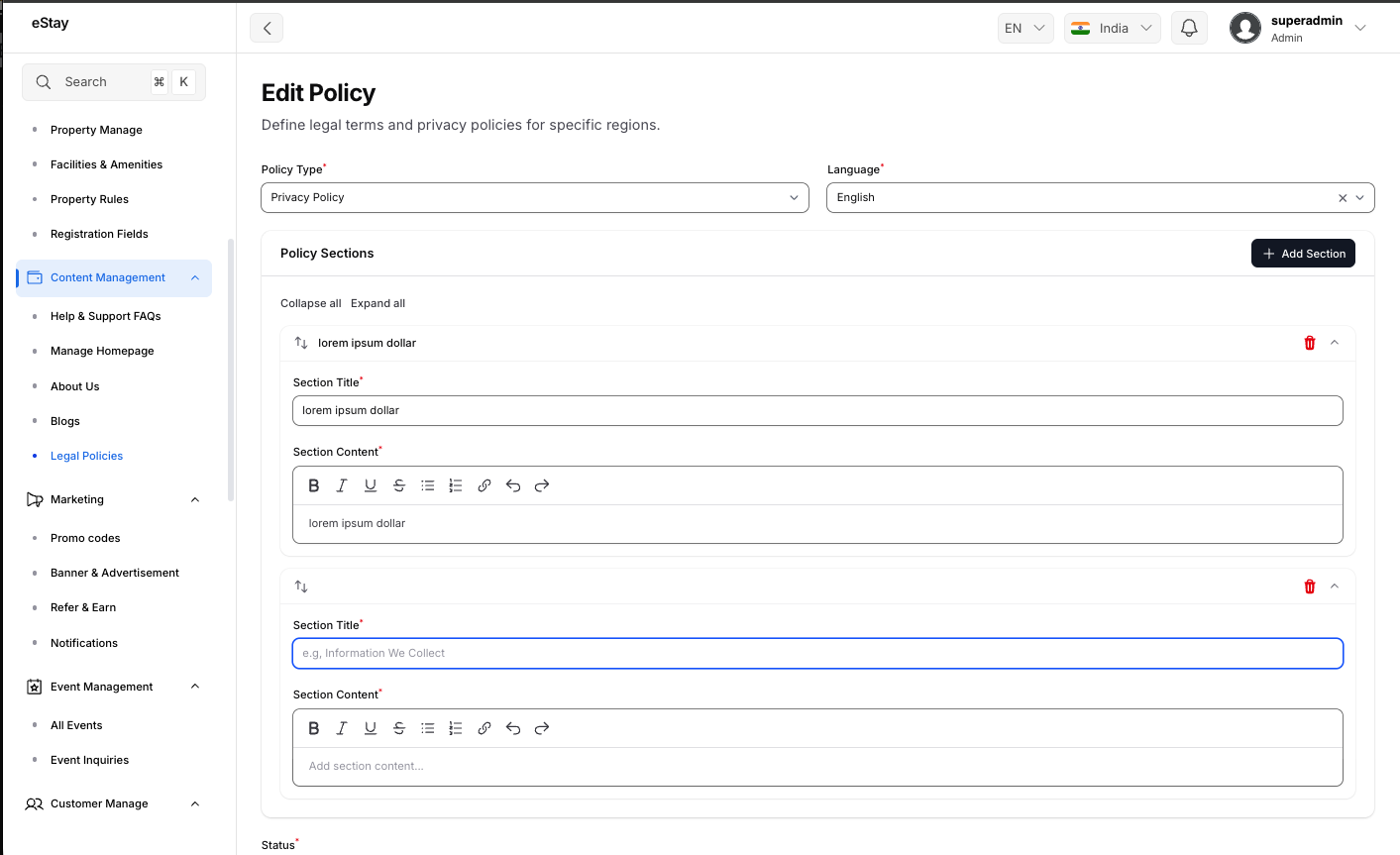
| Policy Type | Select the type of document you are creating (e.g., Privacy Policy, Terms and Conditions, Refund Policy). |
| Language | Select the language for this specific document. You can create multiple policies of the same type if they are in different languages. |
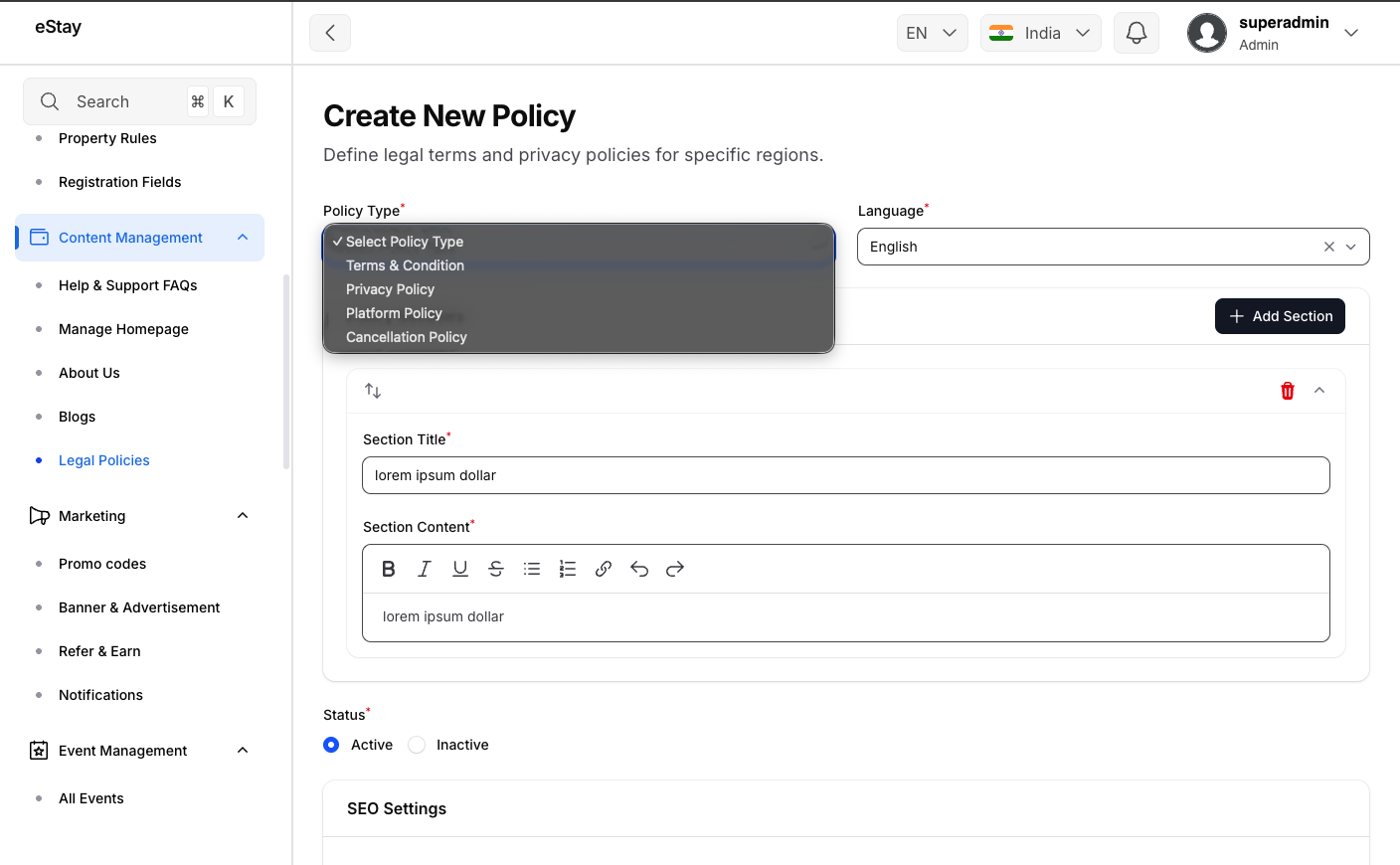
Step 4: Add Policy Sections
Legal policies are broken down into Sections to make them easier for users to read.
- Enter a Section Title (e.g., "Information We Collect").
- Use the rich text editor to fill in the Section Content.
- Click the Add Section button at the top right of the block to add another section to the document.
Step 5: Configure SEO Settings (Optional)
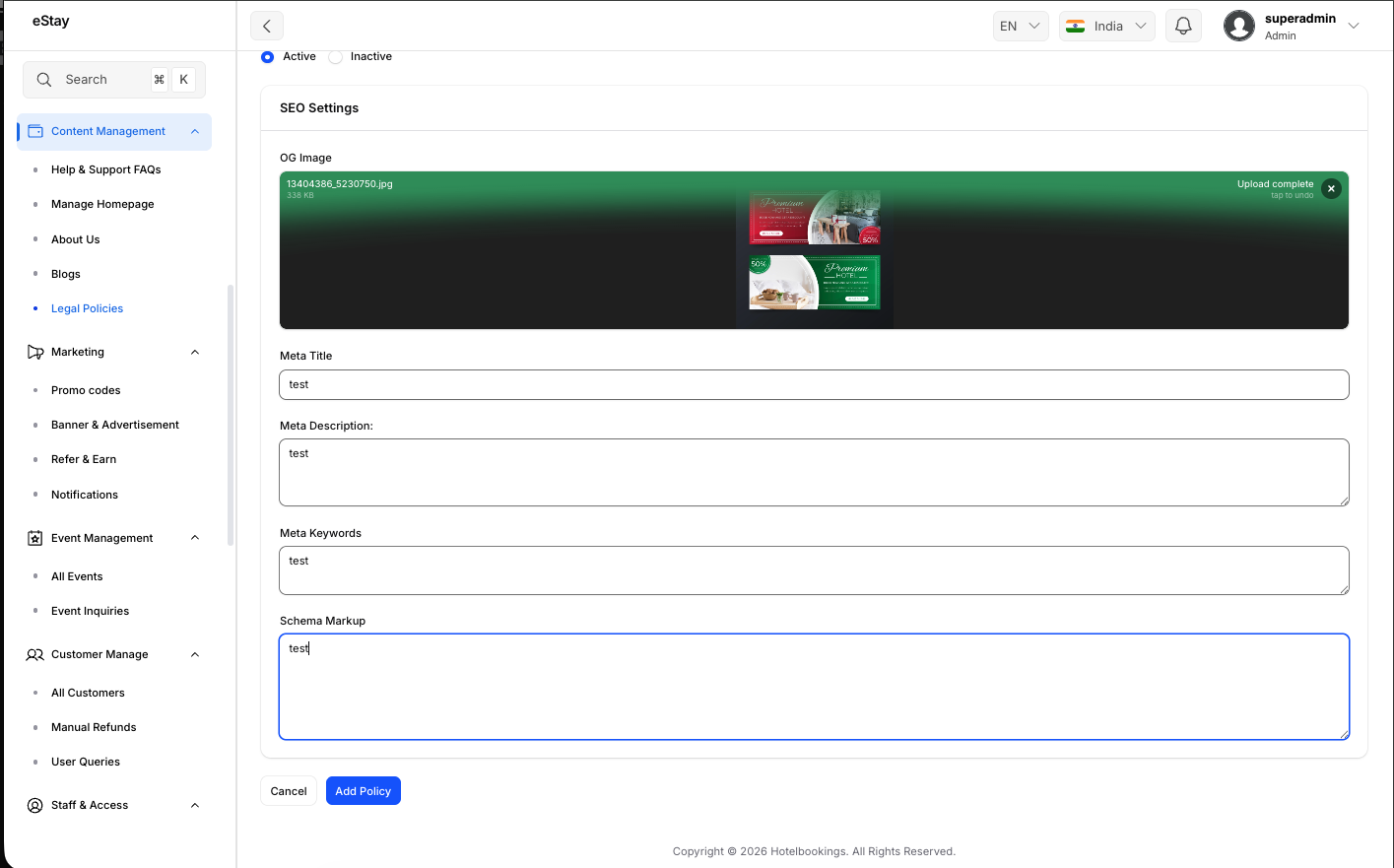
Scroll down to the SEO Settings section. Here you can configure how this legal page will appear in search engines and on social media:
| Field | Description |
|---|---|
| OG Image | Upload an image that will display when the link is shared on social media. |
| Meta Title & Description | Enter the title and description that will appear in Google search results. |
| Meta Keywords | Add relevant keywords separated by commas. |
| Schema Markup | Paste any structured data/JSON-LD for advanced search engine indexing. |
 |
Step 6: Save the Policy
Ensure the Status is set to Active, then click the Add Policy button at the bottom of the page to publish your legal policy to the platform.