MAIL Configurations
Manage core system integrations from Settings → System Configurations. This includes email (SMTP), Firebase, and Google Maps.
SMTP / Email Settings
Configure outgoing email so the system can send booking confirmations, password resets, and other transactional emails.
Go to: Settings → System Configurations → Email Settings
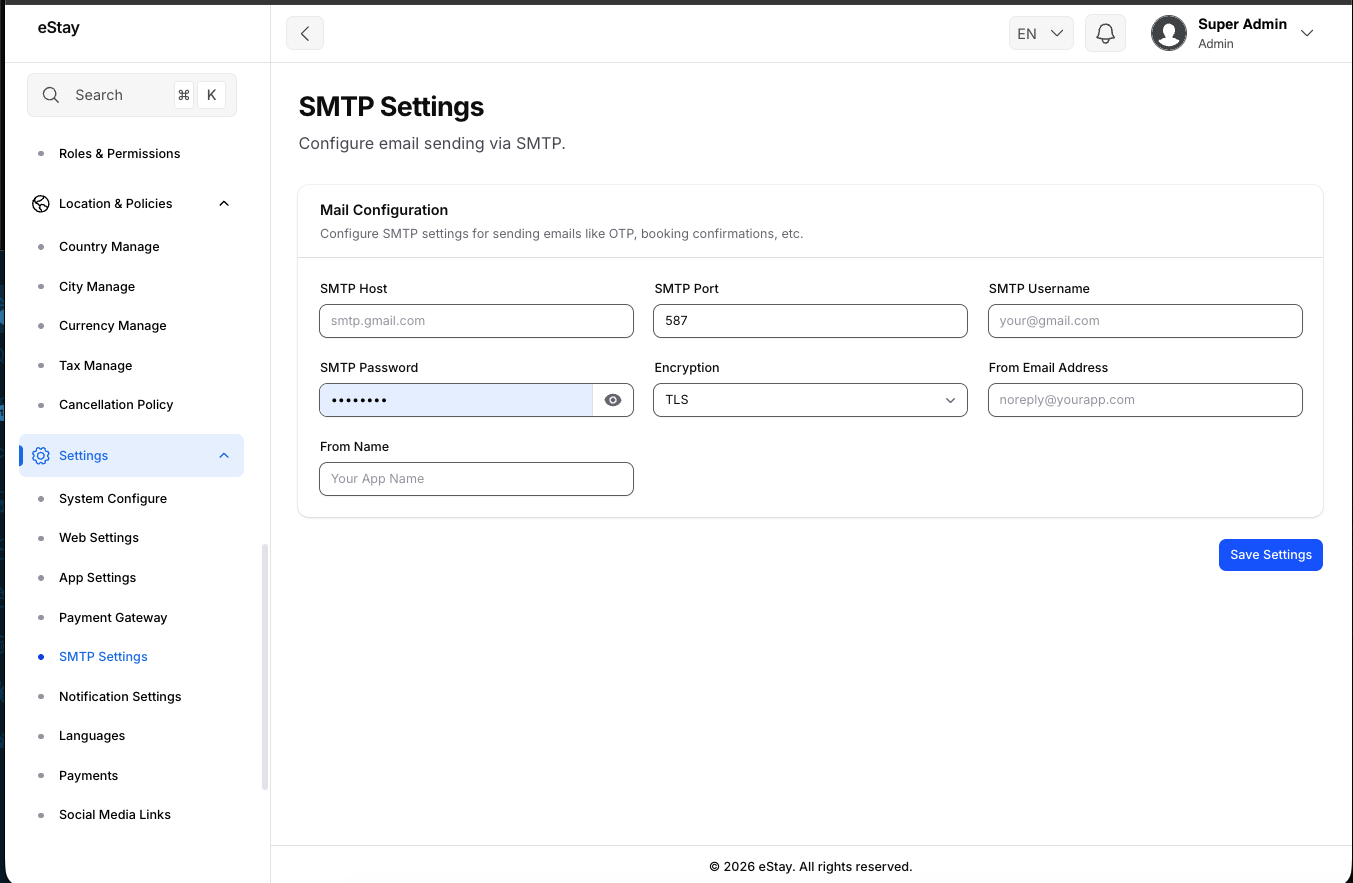
| Field | Description |
|---|---|
| SMTP Host | Your mail server hostname (e.g., smtp.gmail.com) |
| SMTP Port | Port number (e.g., 587 for TLS, 465 for SSL) |
| SMTP Username | Your email address or SMTP login |
| SMTP Password | Your email account password or app password |
| Encryption | Select TLS or SSL |
| From Name | Sender name shown to recipients (e.g., eStay Support) |
| From Email | Sender email address (e.g., no-reply@yourdomain.com) |
Steps
- Go to Settings → System Configurations → Email Settings.
- Fill in all SMTP fields.
- Click Save.
- Use the Send Test Email button to verify delivery.
If you use Gmail, enable 2-Step Verification on your account and generate an App Password to use as the SMTP password instead of your regular password.
The SMTP password is a sensitive credential. Use a dedicated app password rather than your main email account password, and never reuse it elsewhere. The password is stored securely on your own server and is never exposed to the app or sent to any third party. If you suspect it has been compromised, revoke the app password in your mail provider's settings and generate a new one.