Promo Codes & Offers
The Promo Codes section (under Marketing) lets you create discount codes and offers for your customers — percentage or fixed-amount discounts, with full control over who can use them, where, and for how long.
Promo codes are created for your currently selected country. The list shows codes for that country only. Switch the country from the topbar to manage codes for another country.
Step 1: Open Promo Codes
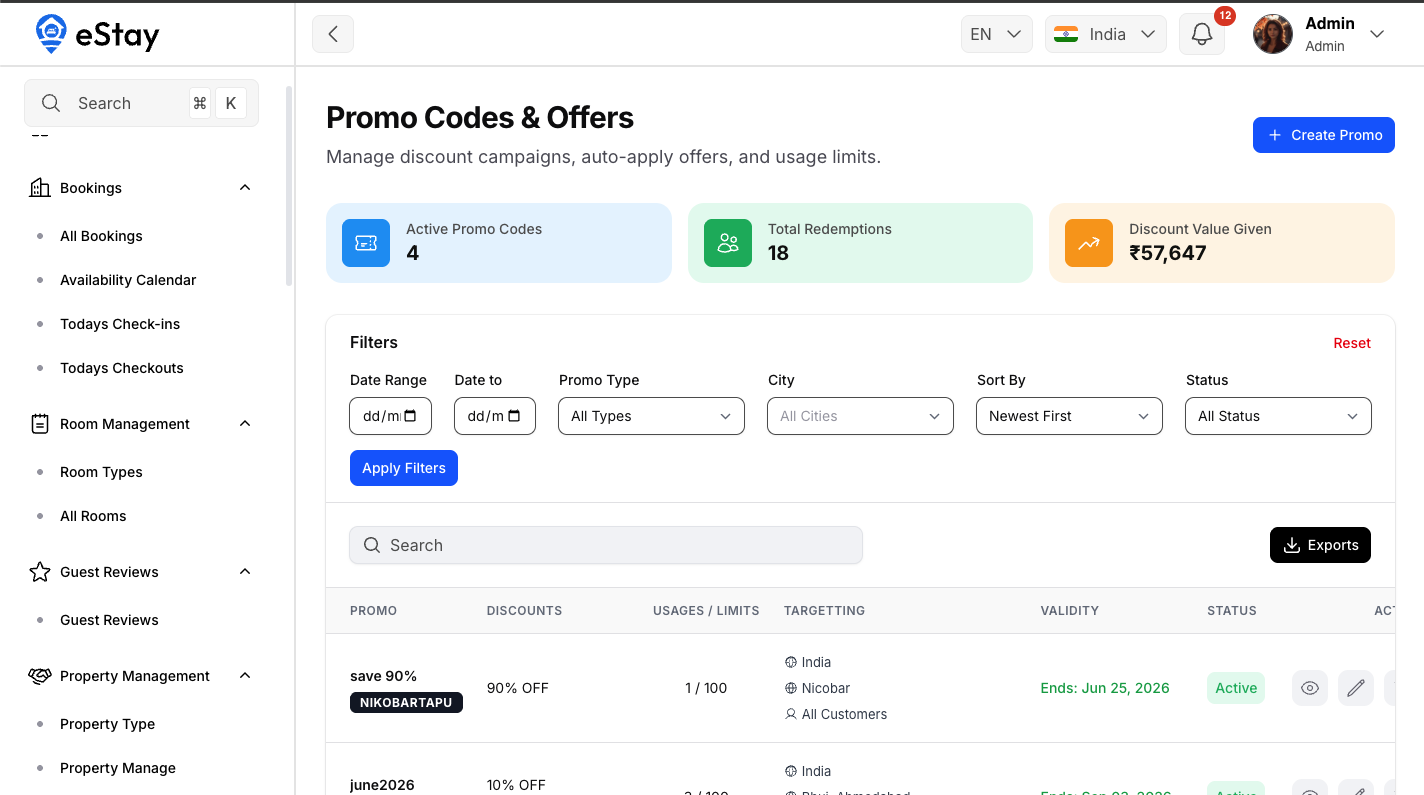
In your admin dashboard, go to Marketing > Promo Codes. You'll see summary stats at the top and a table of existing codes below.
Step 2: Create a Promo Code
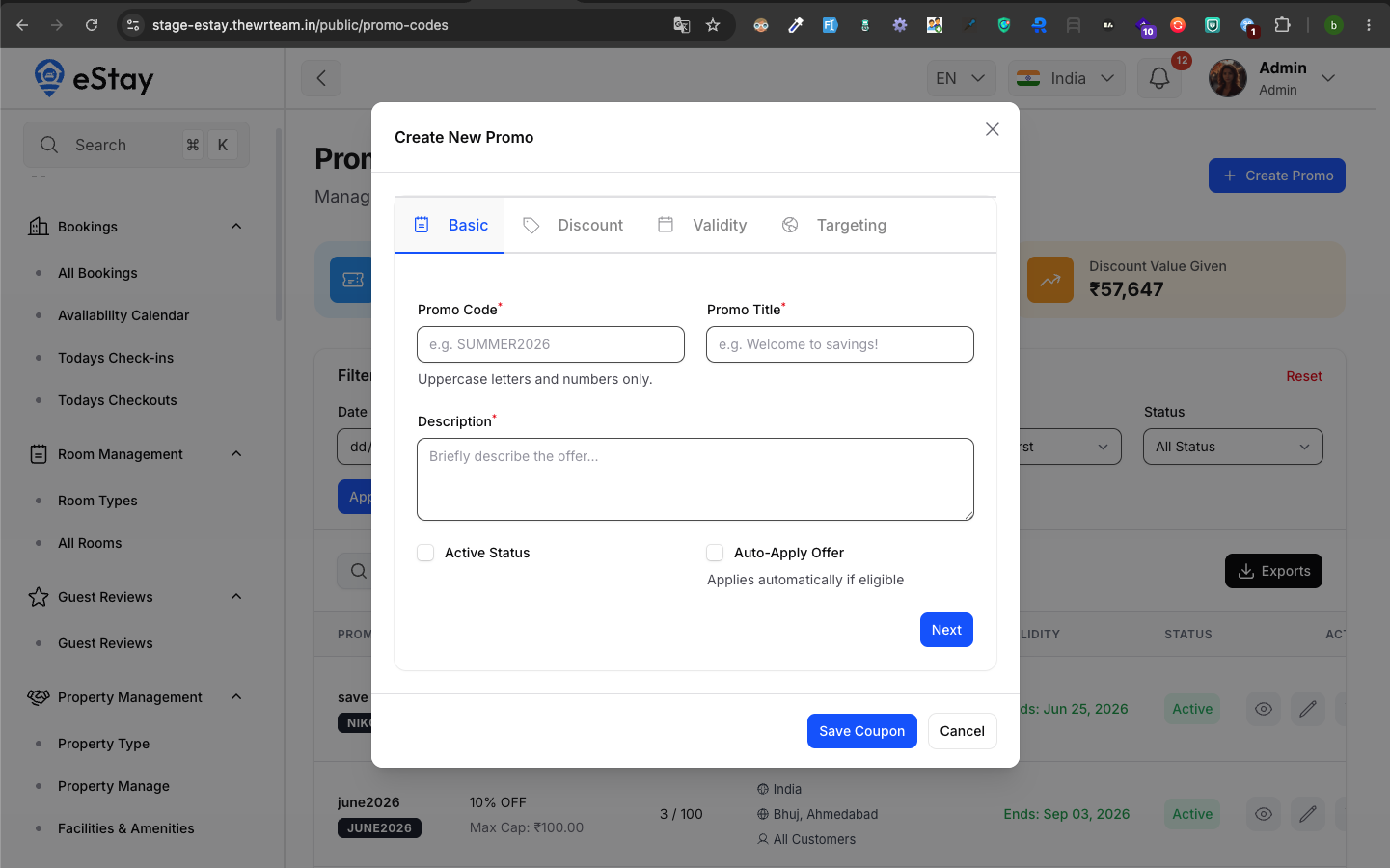
Click Create Promo. A guided 4-step wizard opens.
Step A — Basic
| Field | Description |
|---|---|
| Promo Code | The code customers enter (e.g. SUMMER2026). Uppercase letters, numbers, hyphens, and underscores only. Must be unique. Max 50 characters. |
| Promo Title | A short title (e.g. Welcome to savings!). Max 100 characters. |
| Description | A brief description of the offer. Required, max 500 characters. |
| Active Status | Tick to make the code usable. |
| Auto Apply Offer | Tick to apply this offer automatically at checkout (no code entry needed). |
Step B — Discount
| Field | Description |
|---|---|
| Discount Type | Percentage (%) or Fixed Amount. |
| Value | The discount amount. For percentage, 1–99. For fixed, the amount in your currency. |
| Max Discount Cap | (Percentage only) The maximum money value the percentage can discount — e.g. "10% off, up to $50." |
| Minimum Booking Amount | The smallest booking total required to use the code. |
| First Booking Only | Tick to restrict the code to a customer's very first booking. |
For a fixed-amount discount, the value can't be larger than the minimum booking amount.
Step C — Validity
| Field | Description |
|---|---|
| Start Date | When the code becomes active. |
| End Date | When it expires (must be on or after the start date). |
| Usage Limits | Total number of times the code can be used across all customers. Defaults to 100. |
Step D — Targeting
| Field | Description |
|---|---|
| Selected Country | Shown for reference — the code applies to your current country. |
| Choose Cities | Optionally limit the code to specific cities. Leave empty to allow all cities in the country. |
| Customer Segments | Who can use it: New, Returning, or All Customers. |
Click Save Coupon to finish.
Understanding the Promo List
| Column | Description |
|---|---|
| Promo | The title, the code (dark badge), and an "Auto Apply" tag if enabled. |
| Discounts | The discount value, plus the max cap if set. |
| Usages / Limits | How many times it's been used vs the total limit. |
| Targeting | Country, cities (or "All Cities"), and the customer segment. |
| Validity | A status-aware date — e.g. Ends: … (active), Starts: … (scheduled), Ended: … (expired). |
| Status | Active, Scheduled, Expired, or Inactive. |
The status is calculated automatically from the active toggle and the start/end dates:
- Scheduled — active, but the start date is in the future.
- Active — active and within the date range.
- Expired — the end date has passed.
- Inactive — the active toggle is off.
You can search by title, filter by date range / type / city / status, sort, and export the list.
Managing Promo Codes
| Action | What it does |
|---|---|
| View (eye) | See full details of the offer. |
| Edit (pencil) | Update any setting. (Editing lets you jump between wizard steps freely.) |
| Delete (trash) | Remove the code. |