Manual Refunds
When an automatic refund to a customer's original payment method fails (for example, the card or gateway can't accept it), the customer can submit their bank details to receive the refund by manual bank transfer. The Manual Refunds page is where your team reviews those requests and records the transfer.
Requests are shown for your currently selected country (and property, if one is selected). Switch the country/property from the topbar to see requests elsewhere.
Step 1: Open Manual Refunds
In your admin dashboard, go to Customer Manage > Manual Refunds. You'll see all refund requests with their current status.
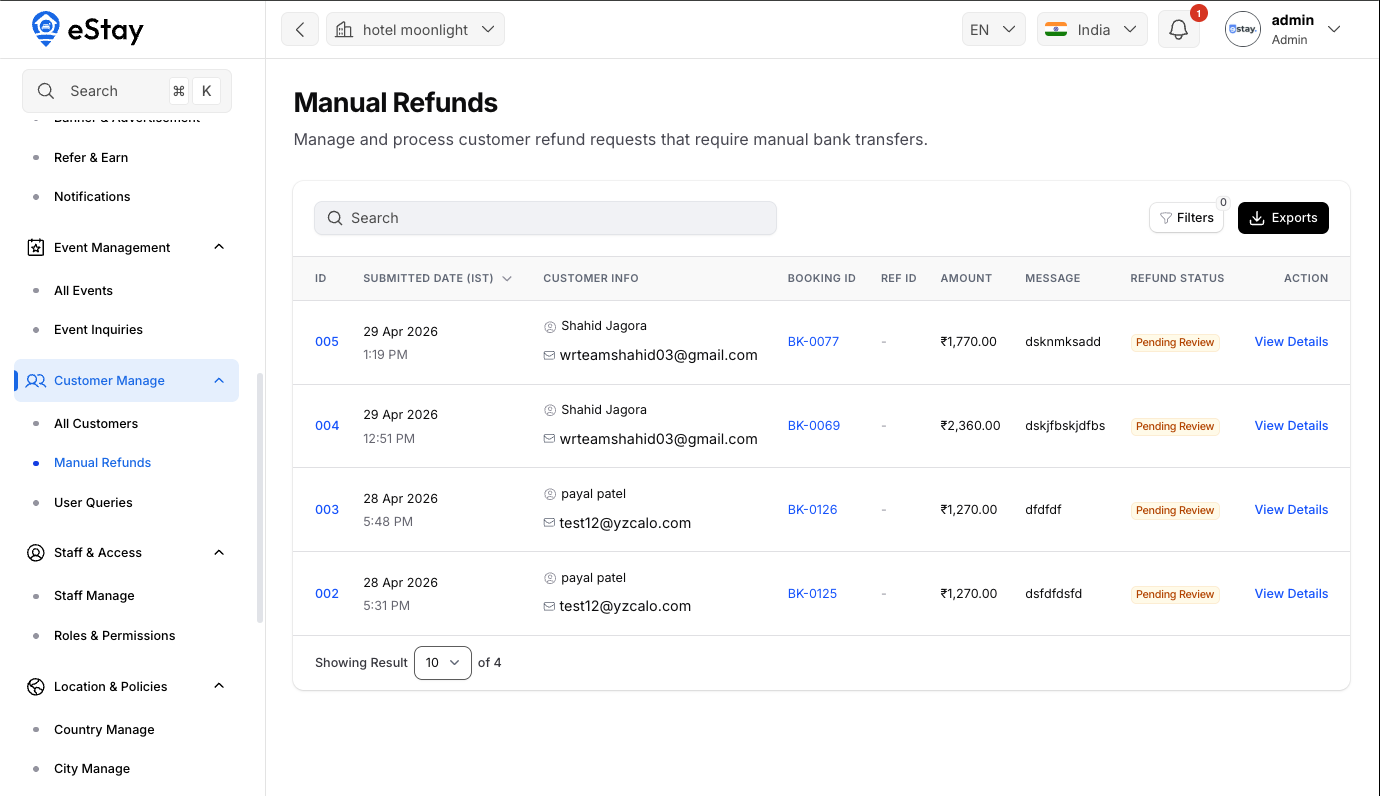
Understanding the List
| Column | Description |
|---|---|
| ID | The request number (e.g. 001). |
| Submitted Date | When the customer submitted the request (shown in your timezone). |
| Customer Info | The customer's name and email. |
| Booking ID | The related booking — click to open it. |
| Ref ID | The transfer reference (generated once you mark it transferred). |
| Amount | The refund amount. |
| Message | Any note the customer added. |
| Status | Pending Review (awaiting action) or Transferred (completed). |
You can search, filter by status, and export the list.
Step 2: Review a Pending Request
Click View Details on a Pending Review request. A panel opens showing the customer's submitted bank details:
| Field | Description |
|---|---|
| Account Holder Name | Name on the bank account. |
| Bank Name | The customer's bank. |
| Account Number | The account to transfer to. |
| IFSC / SWIFT Code | The bank routing code. |
| Message | Any note from the customer. |
Verify these details, then make the bank transfer outside the system using your own banking.
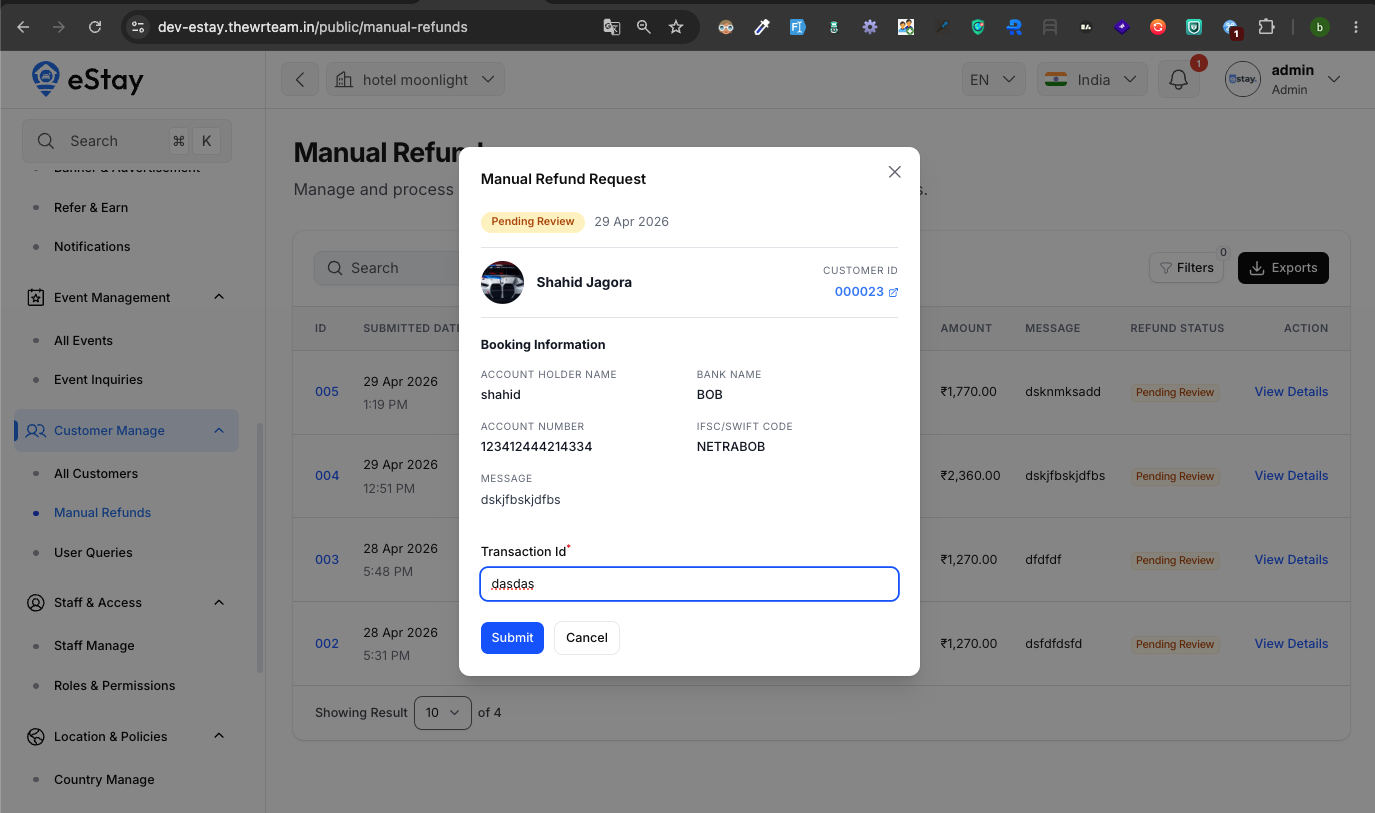
Step 3: Record the Transfer
After you've sent the money, enter the Transaction ID from your bank transfer and click Submit.
When you do, the platform automatically:
- Marks the request as Transferred and generates a transfer reference ID.
- Completes the related failed refund and notifies the customer.
- Records a refund entry against the booking for your financial history.
Recording a Transaction ID marks the refund as completed and notifies the customer. Only do this after the money has actually been sent from your bank.
Step 4: Review a Completed Refund
For a Transferred request, click View Details to see the full refund summary — refund method, reference ID, status, the dates, the amount, and the transaction ID you entered. This is a read-only record for your reference.
Manual refunds exist as a fallback for refunds that couldn't be returned automatically. For how automatic payments and refunds flow through the gateways, see Payment Gateway Settings.