Payment Transactions
The Payments page is a complete record of every payment that flows through your platform — booking payments, partial payments, and refunds. It's a read-only ledger for monitoring and reconciling money: you can view and search transactions, but they're created automatically by the booking and payment flow, not added by hand.
Transactions are shown for your currently selected country (and property, if one is selected). Switch the country/property from the topbar to view transactions elsewhere.
Step 1: Open Payments
In your admin dashboard, go to Settings > Payments. You'll see all transactions, newest first.
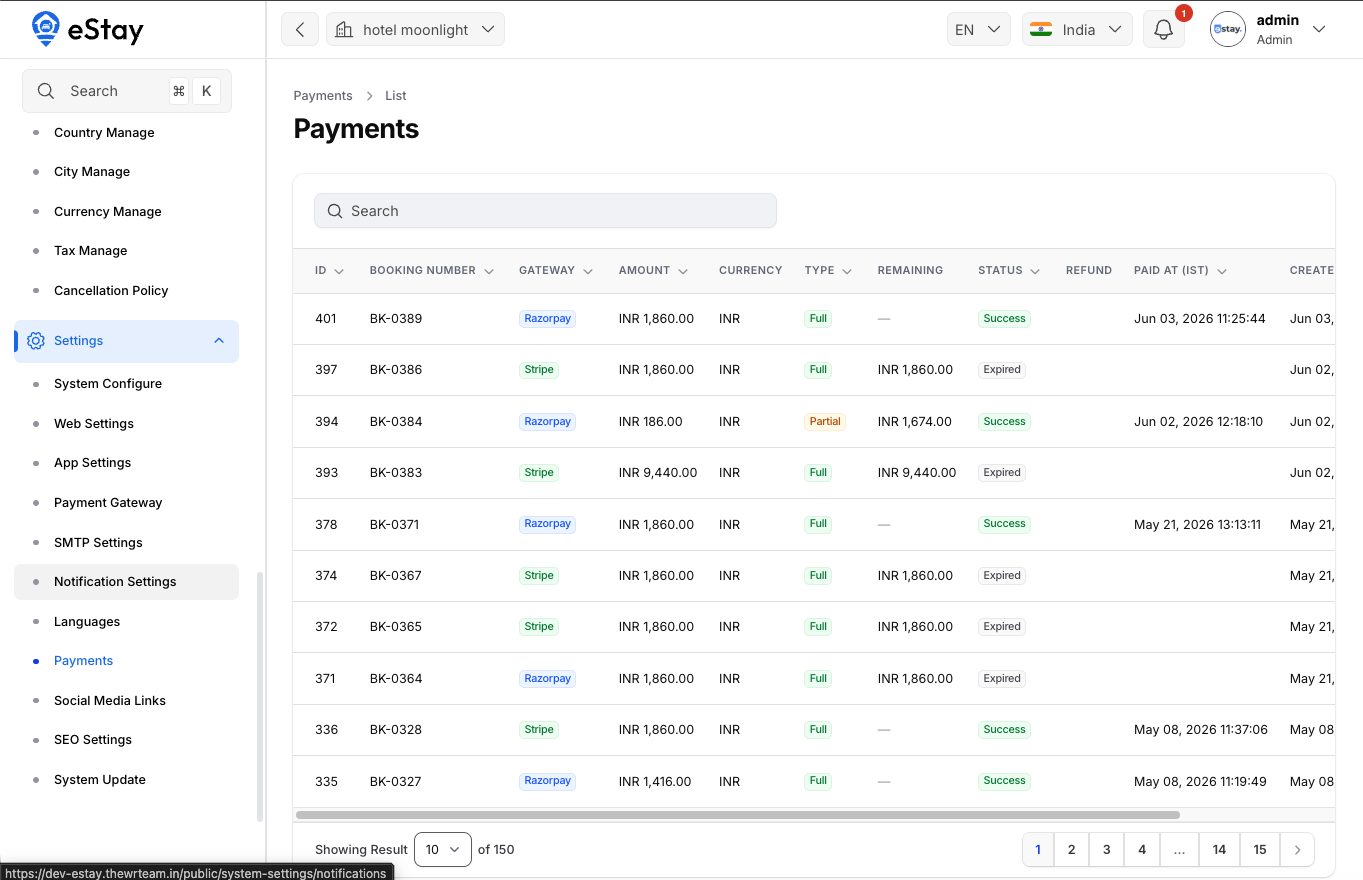
Understanding the List
| Column | Description |
|---|---|
| ID | The transaction's internal identifier. |
| Booking Number | The booking this payment belongs to. |
| Gateway | Which provider processed it — Razorpay, Stripe, Flutterwave, or Manual (for manual/bank-transfer payments, the method is shown). |
| Amount | The transaction amount, with its currency. |
| Currency | The currency the payment was made in. |
| Type | The kind of transaction — e.g. a booking Payment or a Refund. |
| Remaining | For partially-paid bookings, how much is still owed (blank when fully paid). |
| Status | The transaction status — e.g. Success, Pending, Failed, Refunded. |
| Refund | The refund status, if this payment has been refunded. |
| Paid At | When the payment was completed (in your timezone). |
| Created | When the transaction record was created (in your timezone). |
You can search by booking number or currency and sort by any sortable column.
Step 2: View a Transaction
Click the View icon (eye) on any row to open its full details, including the booking, gateway, amounts, status, and timestamps.
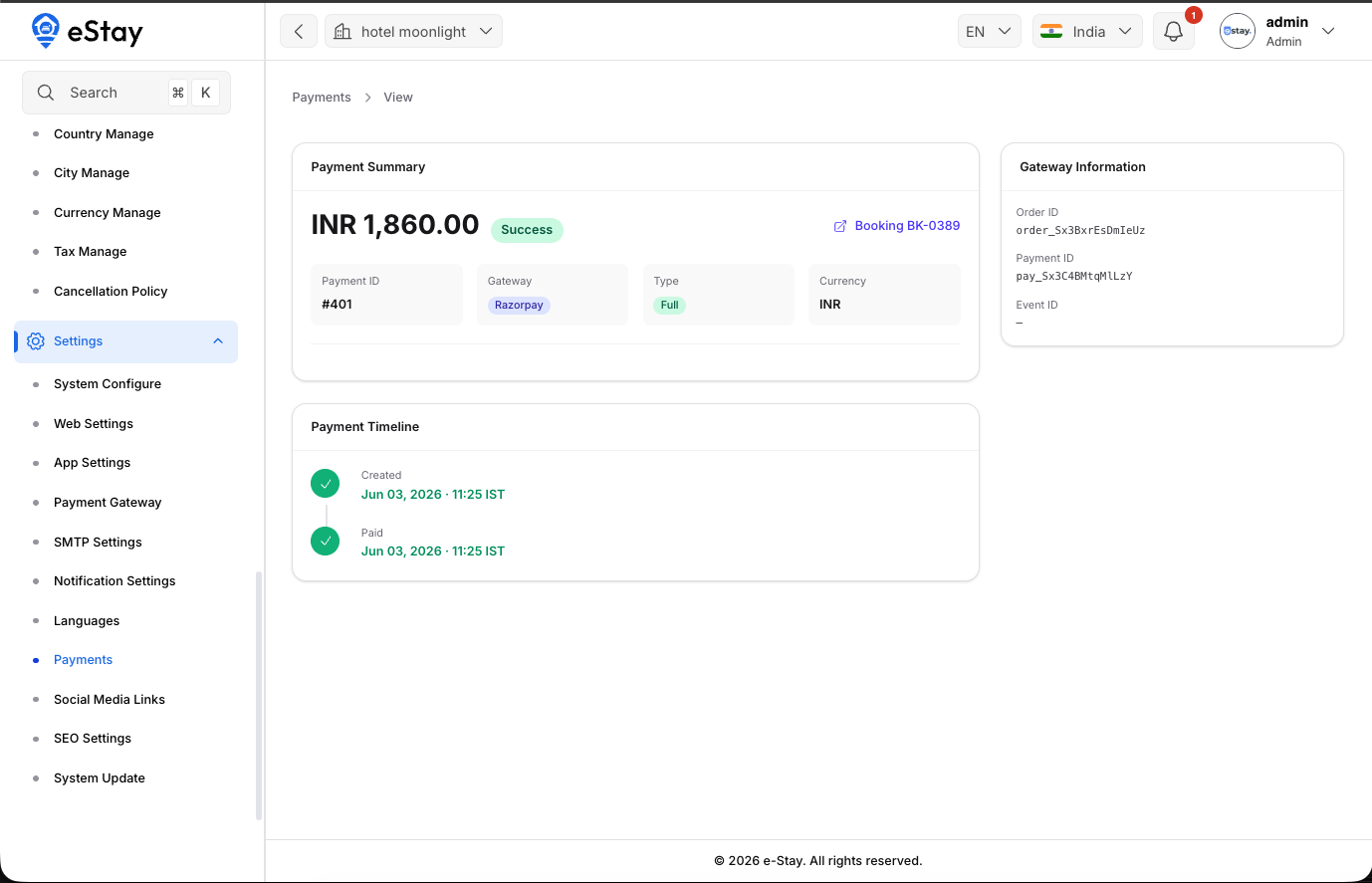
If you open a payment that belongs to a different country than the one you currently have selected, the platform will let you know and return you to the list — so you always work within your selected country's data.
How It Relates to Other Pages
| If you want to… | Go to |
|---|---|
| Configure how payments are processed (gateways, webhooks) | Payment Gateway Settings |
| Handle a refund that couldn't be returned automatically | Manual Refunds |
| See a specific customer's payment history | the customer's profile under Customers |
A single booking can have multiple transactions — for example, an initial payment, a later balance payment, and a refund. The Remaining column helps you spot bookings that aren't fully paid yet.