Manage Customers
The Customers section lets you view everyone who has signed up on your platform, review their booking activity and spending, inspect detailed insights for an individual customer, and suspend or reactivate accounts when needed.
All customer data is shown for your currently selected country. Booking counts, total spent, and insights only reflect bookings made on properties within that country. Switch the country from the topbar to view customers in another country.
Step 1: Navigate to Customers
In your admin dashboard, navigate to Customer Manage > All Customers using the left sidebar.
Step 2: Understand the Customer List
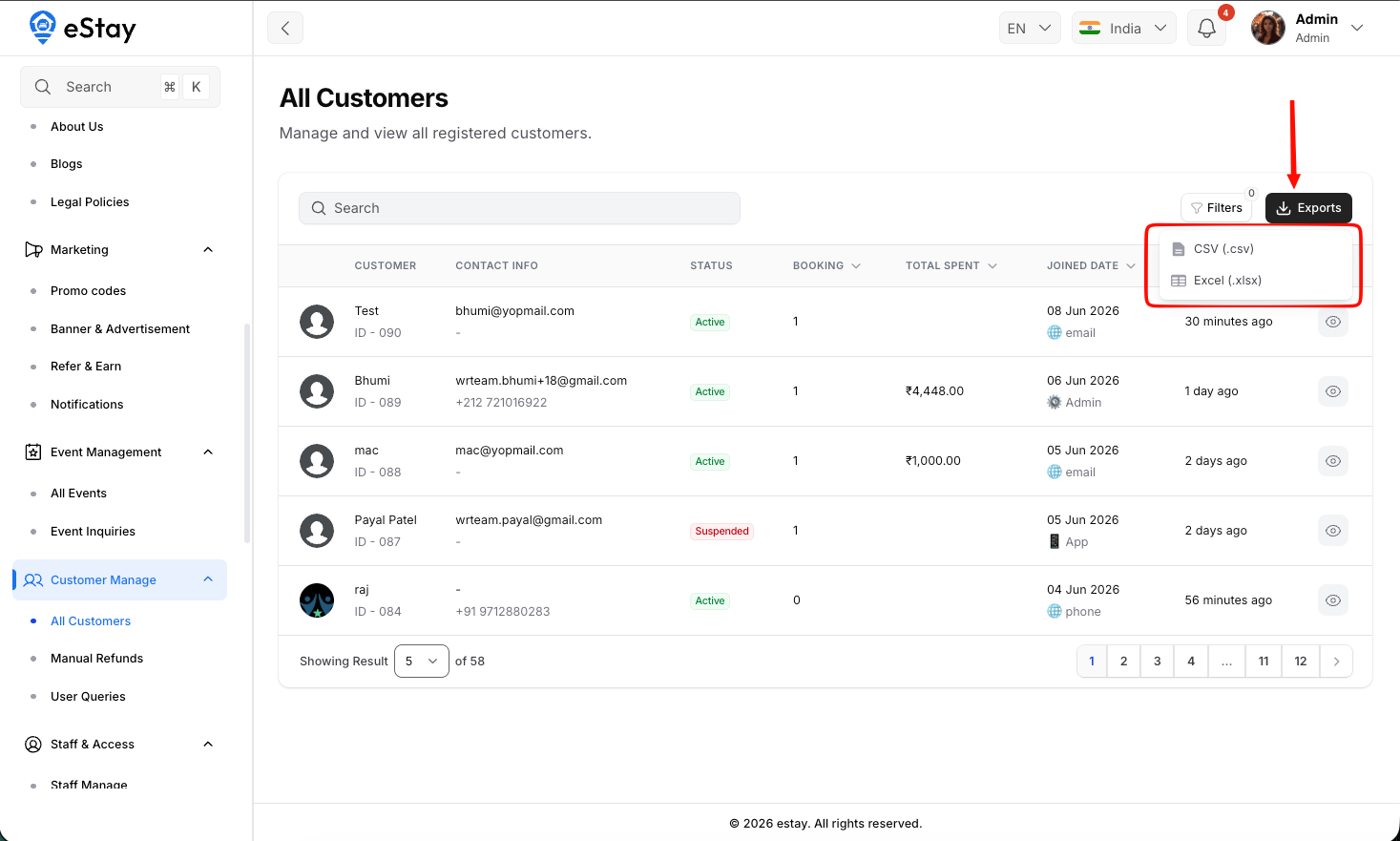
The customer list shows every registered customer with the following details:
| Column | Description |
|---|---|
| Customer | The customer's profile photo, name, and unique ID (e.g. ID - 001). |
| Contact Info | The customer's email address and phone number. |
| Status | Whether the account is Active (green) or Suspended (red). |
| Booking | The total number of bookings the customer has made in the selected country. |
| Total Spent | The total amount the customer has paid for confirmed, checked-in, or completed stays. |
| Joined Date | When the customer registered, along with how they signed up — Web (🌐), App (📱), or Admin (⚙). |
| Last Active | How long ago the customer was last active on the platform. |
Use the search bar to find a customer by name, email, or phone number. You can also use the Status filter to show only Active or Suspended customers, and click any sortable column header (Booking, Total Spent, Joined Date, Last Active) to reorder the list.
Step 3: Export the Customer List
To download the full customer list, click the Export button in the toolbar, choose CSV or Excel (XLSX), and the file will download instantly.
The export includes each customer's name, email, phone, status, total bookings, total spent, and joined date.
Step 4: View a Customer's Profile
Click the View icon (eye) next to any customer to open their detailed profile page.
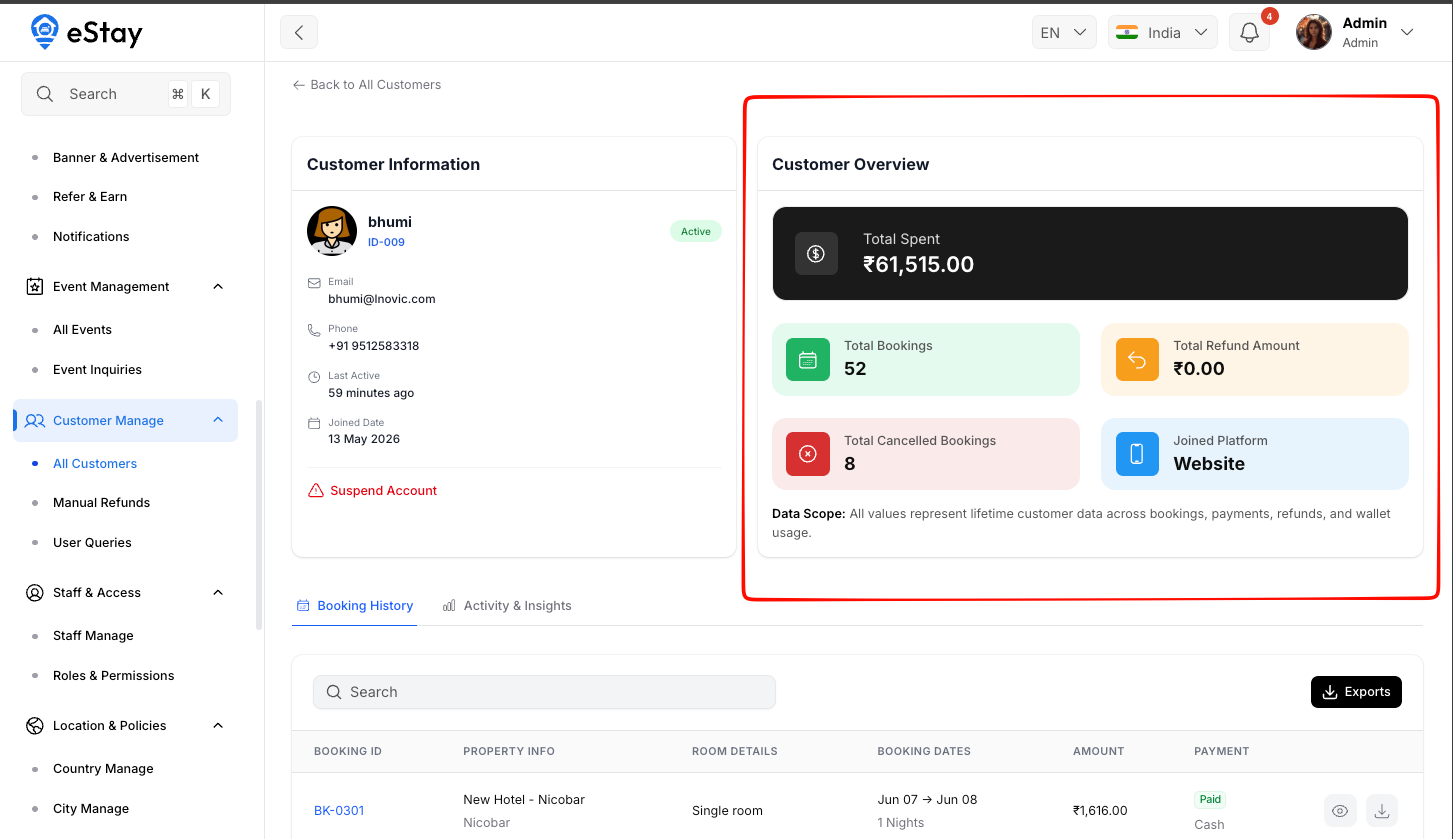
At the top of the profile you'll see summary statistics for the selected country:
| Stat | Description |
|---|---|
| Total Spent | Amount paid across confirmed, checked-in, and completed bookings. |
| Total Bookings | The total number of bookings the customer has made. |
| Total Cancelled | The number of bookings the customer has cancelled. |
| Total Refunded | The total amount refunded to the customer. |
| Joined Platform | Where the customer signed up — Website, Application, or Admin. |
Step 5: Review Booking History
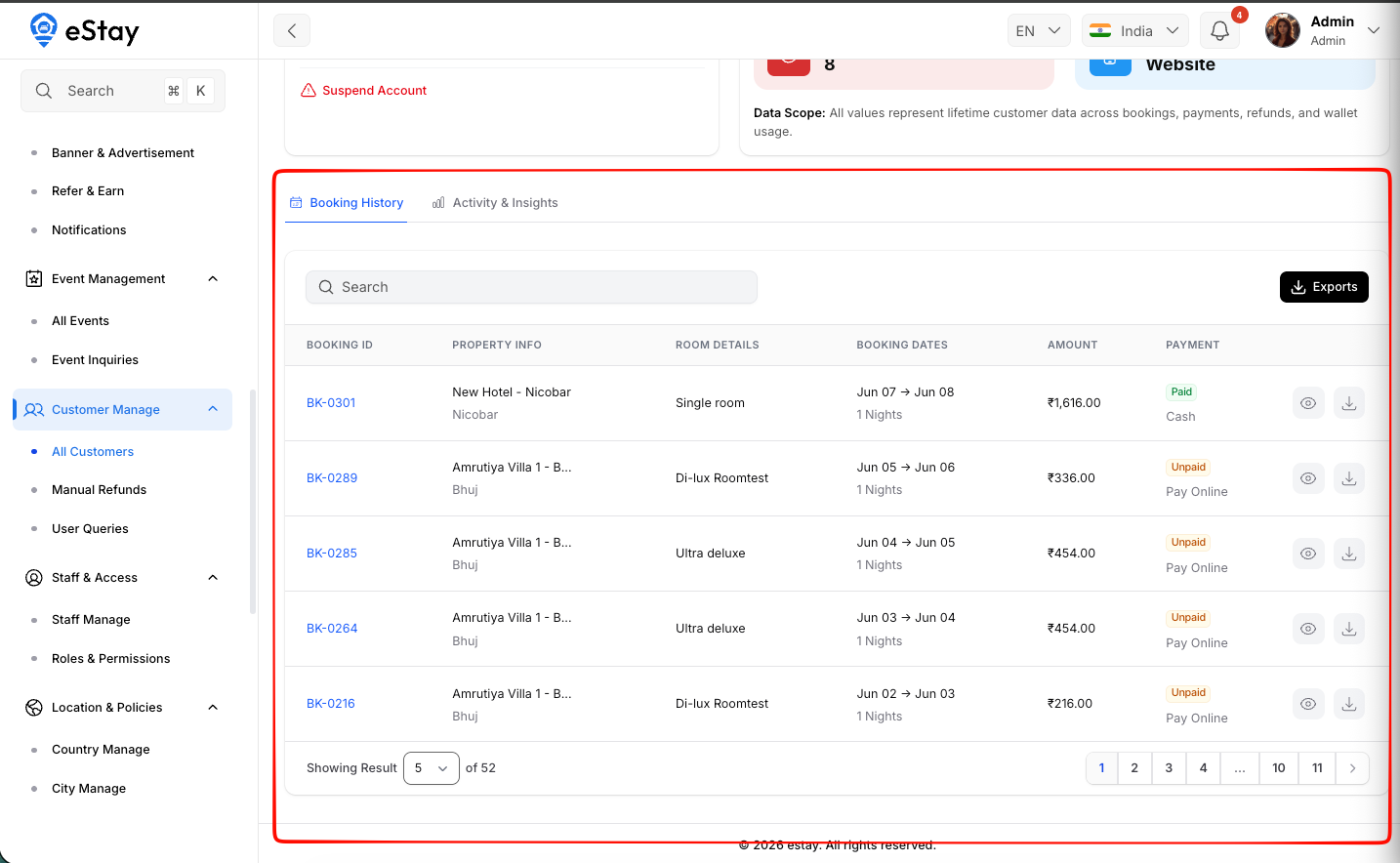
The Bookings tab lists every booking the customer has made in the selected country, including the booking ID, property, room type, stay dates, amount, and payment status.
- Click the View icon (eye) to open the full booking details.
- Click the Download icon to download the booking's invoice.
- Use the toolbar Export button to download the customer's booking history as CSV or Excel.
Step 6: Review Customer Insights
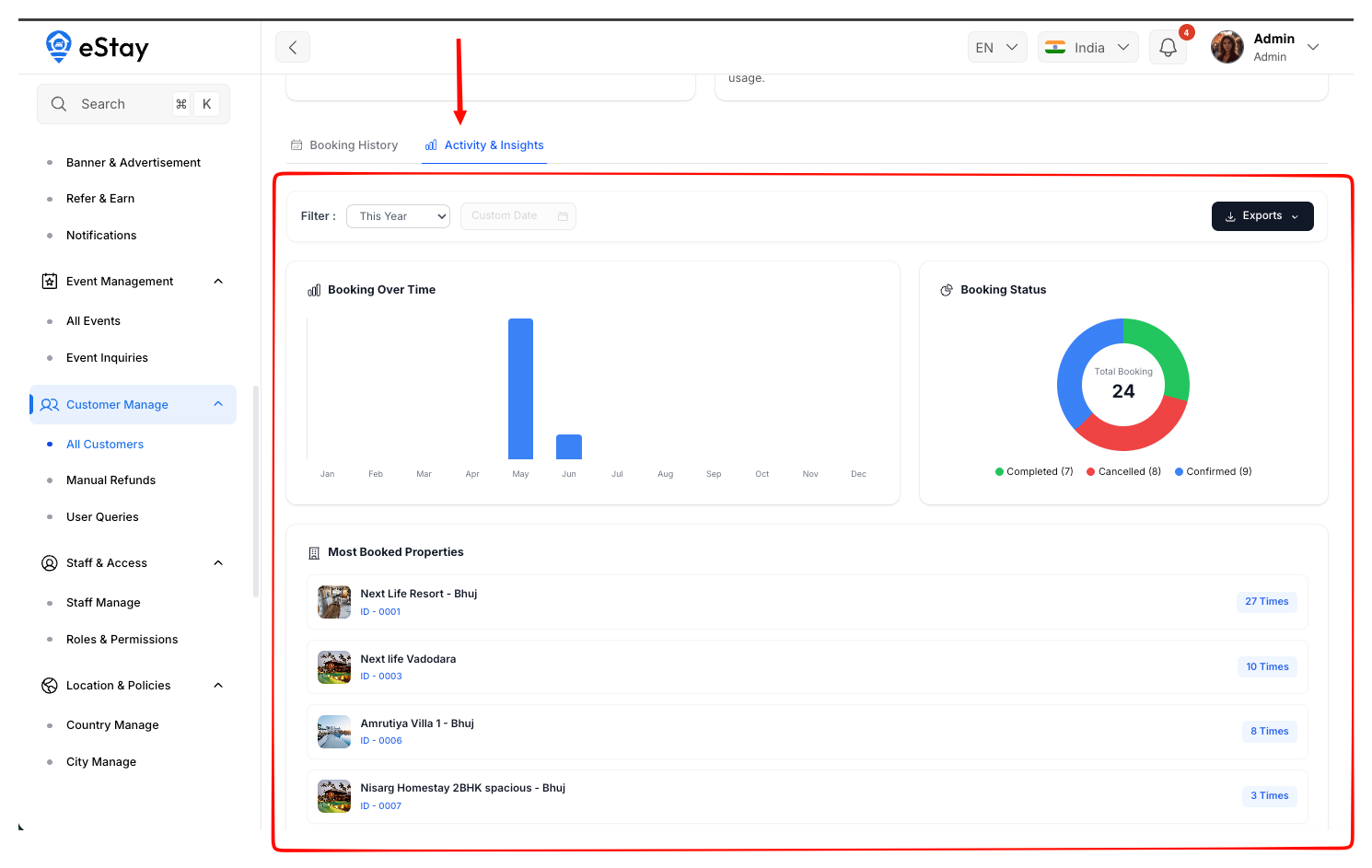
Switch to the Insights tab to see visual analytics for the customer, including bookings over time, a booking status breakdown (completed, cancelled, confirmed), and their most-booked properties.
Use the period filter to view insights for This Week, This Month, This Year, or a Custom date range. You can also export the filtered booking data directly from this tab.
Step 7: Suspend or Reactivate an Account
On the customer's profile, use the Suspend Account action to block a customer from accessing the platform. A confirmation dialog will appear before the change is applied.
If an account is already suspended, the same button changes to Activate Account, allowing you to restore the customer's access.
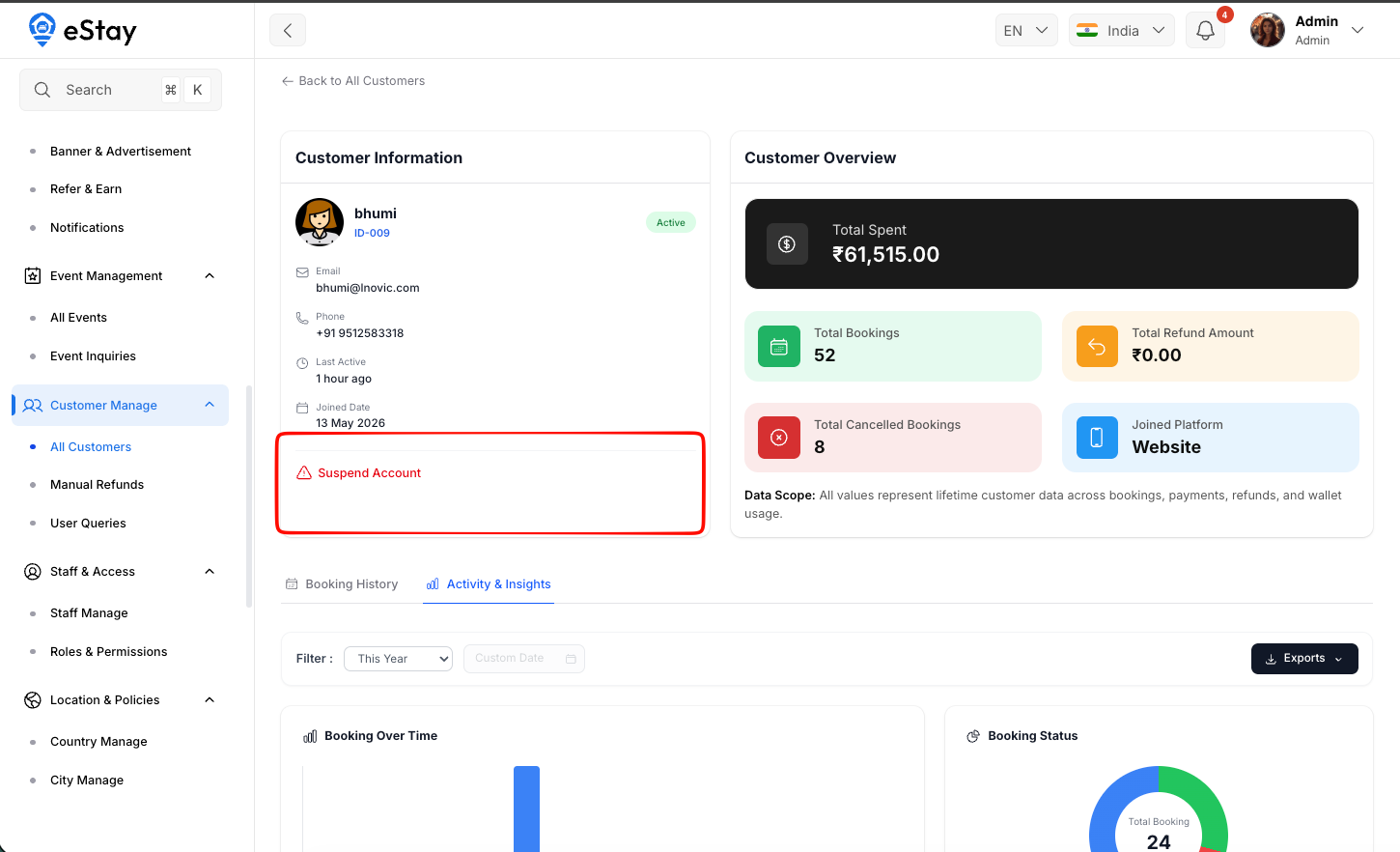
Suspending an account immediately prevents the customer from logging in or making new bookings. Their existing booking history and data remain intact and can still be viewed by admins.
If a customer deletes their own account, admins can still open their profile to review past booking history and financial records.